Before a computer can load an operating system, it has to know where to look for one. This is controlled by the system firmware, usually through BIOS or UEFI settings. One of the most important firmware settings for an IT support technician to understand is boot order.
Boot order tells the computer which device to check first when starting up. The computer may be able to boot from an internal SSD, hard drive, USB flash drive, DVD, or even a network source. If the correct device is not first in the boot order, the computer may fail to start, load the wrong operating system, or skip an installer that the technician is trying to use.
For IT support, boot order is important because many startup problems are not caused by broken hardware. Sometimes the computer is simply trying to boot from the wrong device.
What Does “Boot” Mean?
To boot a computer means to start it and load an operating system. When a computer boots successfully, it goes from being powered off to showing a usable operating system such as Windows, Linux, or macOS.
The boot process begins before the operating system loads. When the power button is pressed, the motherboard firmware starts first. The firmware checks hardware, looks for bootable devices, and then starts the operating system from the selected boot device.
A bootable device is any device that contains the files needed to start an operating system or operating system installer. Common bootable devices include internal SSDs, hard drives, USB flash drives, optical discs, and network boot servers.
What Is Boot Order?
Boot order is the priority list the computer follows when looking for something to start from.
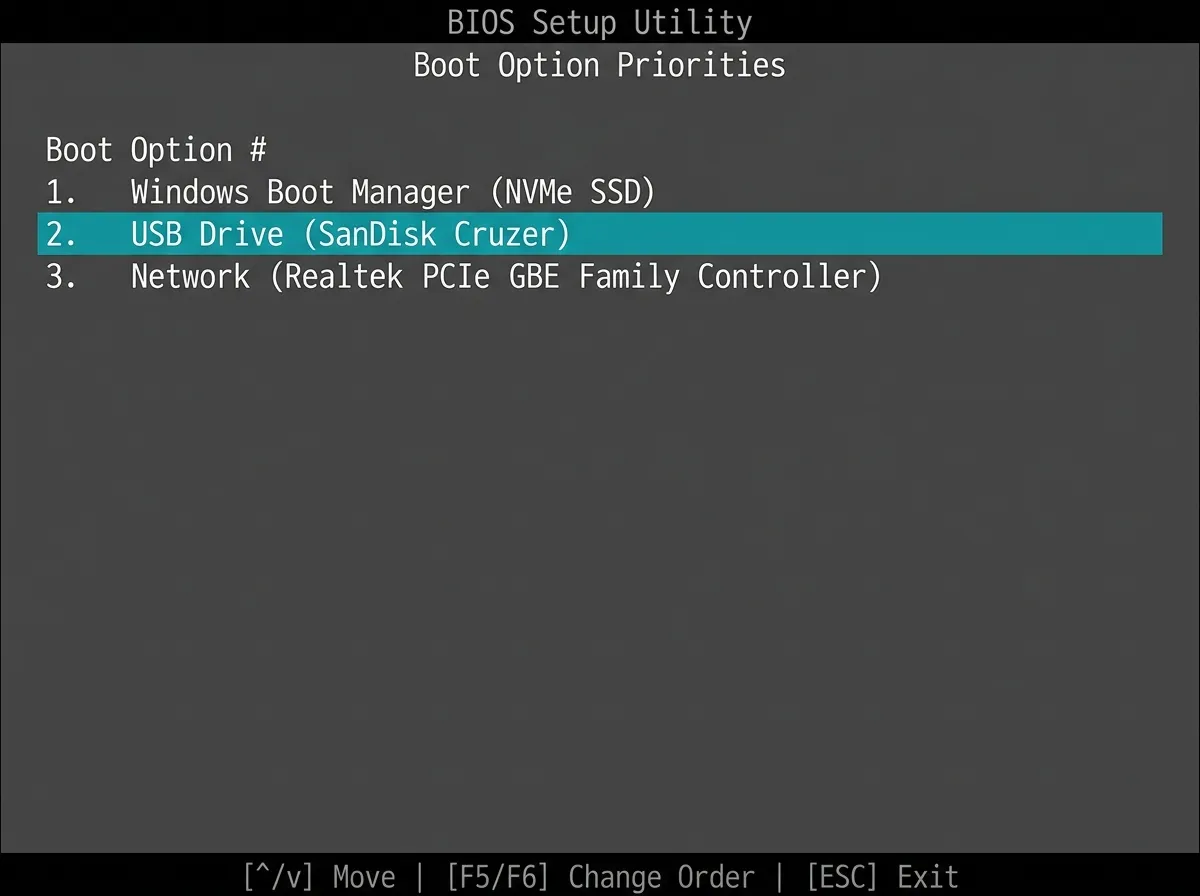
For example, a system may have this boot order:
Internal SSD first, USB drive second, DVD drive third, and network boot fourth.
With that order, the computer checks the internal SSD first. If the SSD contains a working operating system, the computer boots from it. If the SSD is missing, damaged, or not bootable, the system moves to the next option in the list.

Boot order matters because the first working bootable device usually wins. If a USB installer is plugged in but the internal drive is listed first, the computer may ignore the USB drive and boot normally. If a blank or incorrect drive is listed first, the computer may show an error even though a working operating system exists on another drive.
Common Boot Devices
The most common boot device in modern computers is an internal SSD. Many newer systems use an NVMe M.2 SSD as the main boot drive. Older systems may use a SATA SSD or mechanical hard drive.
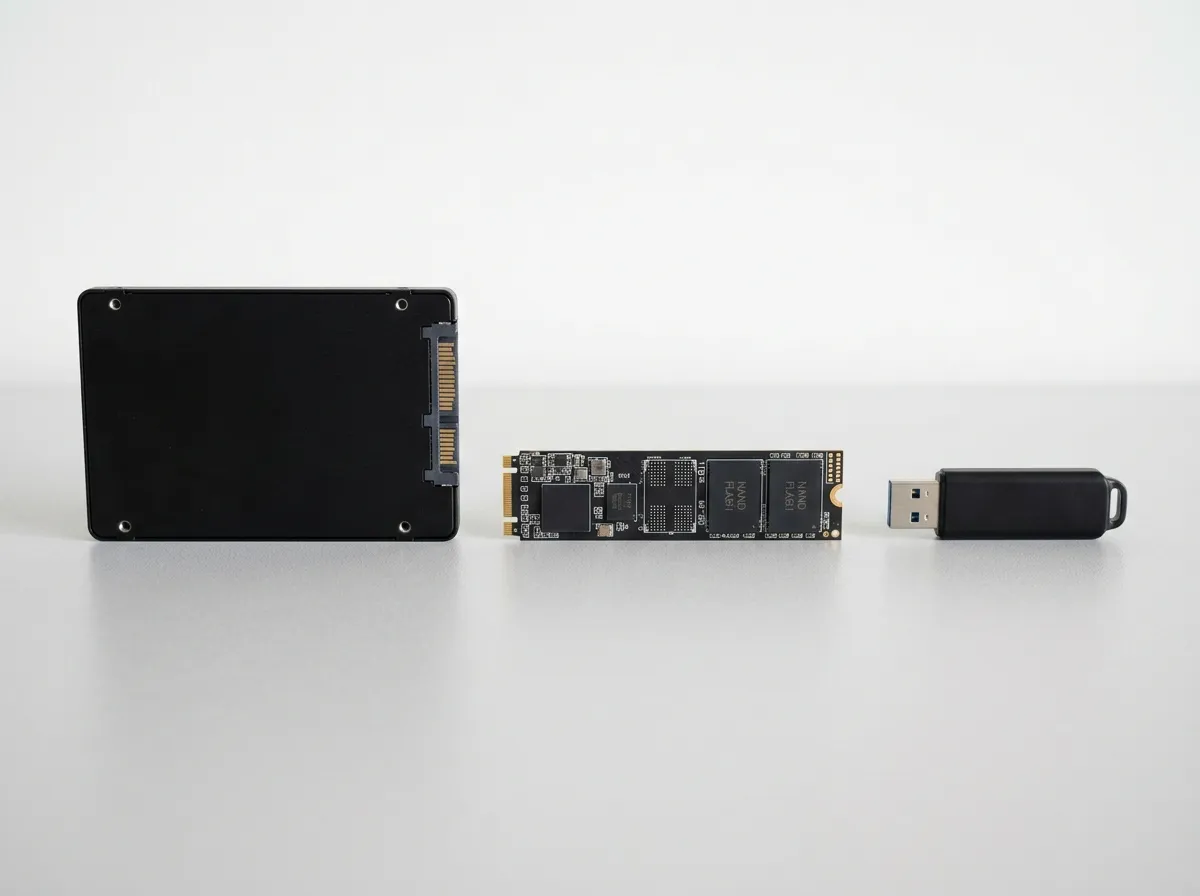
USB drives are commonly used by technicians to install operating systems, run recovery tools, update firmware, or perform diagnostics. A Windows installation USB, Linux live USB, or recovery flash drive must be selected as a boot device before it can run.
Optical drives, such as CD, DVD, or Blu-ray drives, are less common today but may still appear as boot options on some systems. Older repair tools and operating system installers were often distributed on discs.
Network boot, sometimes called PXE boot, allows a computer to start from files provided over the network. This is common in business, school, and enterprise environments where many computers need to be imaged or deployed from a central server.
Boot Option vs. Boot Order
Boot order and boot options are related, but they are not exactly the same.
A boot option is a specific device or startup entry the system can boot from. Examples include Windows Boot Manager, a Samsung SSD, a USB flash drive, a DVD drive, or a network boot option.
Boot order is the priority list that decides which boot option is tried first, second, third, and so on.
For example, a BIOS or UEFI screen may show several boot options:
Windows Boot Manager
Samsung SSD
USB SanDisk drive
CD/DVD drive
Network PXE boot
The technician can then arrange those options in the correct order depending on the task.
Windows Boot Manager
On many modern Windows computers, the first boot option is not listed only as the physical drive. Instead, it may appear as Windows Boot Manager.
Windows Boot Manager is a UEFI boot entry that points to the Windows startup files on a drive. This is normal on modern systems. A technician may see both “Windows Boot Manager” and the name of the physical SSD listed in firmware.
In many cases, Windows Boot Manager should remain first when the goal is to boot into Windows normally. Choosing the raw drive instead of Windows Boot Manager can sometimes cause boot problems, especially on UEFI-based systems.
This is why technicians should not randomly change boot entries without understanding what each option represents.
Temporary Boot Menu
Many computers provide a temporary boot menu.