A user calls because their computer won't recognize a USB drive, and every port is dead. Before you replace hardware, there's one place worth checking that most people never open: the firmware setup screen. That's where the board decides which devices are even allowed to work.
This article focuses on the device-level controls a technician actually adjusts: USB permissions, fan control, and temperature monitoring. The exam expects you to know what these settings do, where you'd find them, and when changing them solves a real problem. On the job, these three areas explain a surprising number of tickets that look like hardware failures but aren't.
Firmware setup is where the board decides what's allowed before the OS loads
BIOS (Basic Input/Output System) and its modern replacement, UEFI (Unified Extensible Firmware Interface), are the firmware that runs the moment you power on a computer. Their job is to test the hardware, apply configuration settings, and hand control to the operating system. Every setting you change here takes effect before Windows or any other OS even starts.
That timing matters. When you disable a USB port in firmware, the operating system never sees a port to disable or troubleshoot. When you set a fan curve here, that curve runs even at the boot screen, before any OS-level utility loads. This is why firmware settings can produce symptoms that look impossible to fix from inside Windows.
You reach these settings by pressing a key during the first second or two of boot. The common keys are Delete, F2, F10, F1, or Esc, depending on the manufacturer. On modern Windows systems with fast boot enabled, the window is so short that you often enter firmware through Windows recovery instead: Settings, then recovery, then advanced startup, then UEFI firmware settings.
In exam terms, remember the distinction between UEFI and legacy BIOS. UEFI supports larger drives through GPT partitioning, offers a graphical interface with mouse support, and includes Secure Boot. Legacy BIOS uses text menus and the older MBR scheme. Most systems you'll touch are UEFI, but the device settings we're covering appear in both.
USB permissions in the firmware control ports at a level the OS can't override
USB configuration in firmware lets you enable or disable USB functionality below the operating system. This is a security and troubleshooting control, and it's more powerful than anything you can set inside Windows, because it acts first.
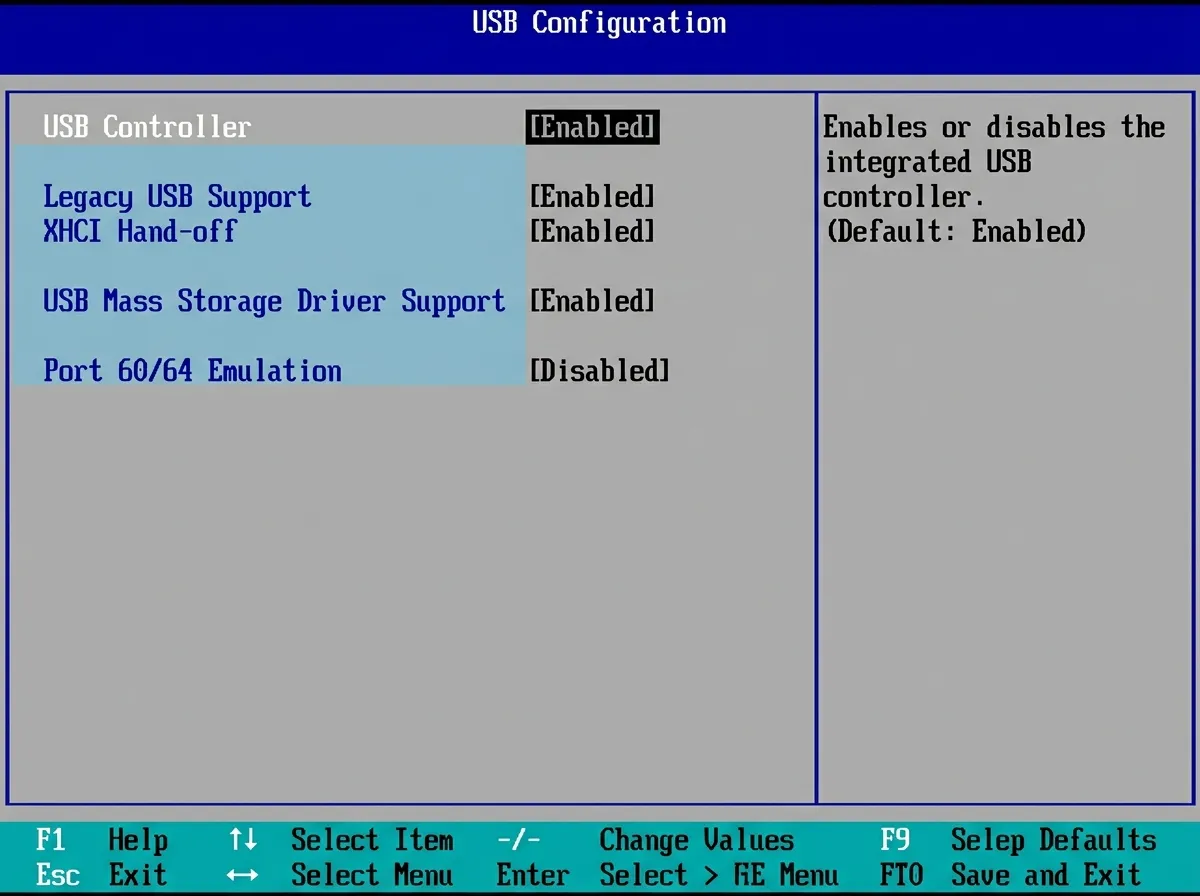
You'll see several distinct settings, and it helps to know what each one actually does:
- USB controller enable/disable: Turns entire USB host controllers on or off. Disabling one can kill a whole bank of ports at once.
- Legacy USB support: Lets USB keyboards and mice work in legacy (BIOS/CSM) environments before an operating system driver loads, including the setup screen on older boards. Modern UEFI firmware carries its own USB drivers, so this setting matters mainly on older systems and in legacy boot mode; there, if it is off, your USB keyboard may not work at the setup screen even though it works fine in Windows.
- USB port permissions: On business-class boards, you can often enable or disable individual ports, useful for locking down a machine.
- Boot from USB: Controls whether the system will boot from a USB device. This lives partly in USB settings and partly in the boot order.
The security reason for these controls is real. Organizations disable USB storage in firmware to prevent data theft and to block malware arriving on flash drives. Because the setting is enforced before the OS loads, a user can't simply re-enable it from Windows without the firmware password. That's the point.
The troubleshooting angle shows up constantly. If a technician deployed a security image or someone changed settings, USB ports can appear physically broken when they're only disabled in firmware. Before you suspect a failed controller or a bad cable, open setup and confirm the USB controllers and legacy support are enabled.
Legacy USB support is the setting that traps you at the setup screen
Here's a gotcha worth remembering on older boards and on systems running in legacy/CSM mode.