Before a computer can load an operating system, something has to start the hardware, check the system, and tell the computer where to boot from. That job belongs to the motherboard firmware.
Firmware is software built into hardware. On a computer motherboard, the firmware controls the earliest part of the startup process. It runs before Windows, Linux, or any other operating system loads. Two important types of motherboard firmware are BIOS and UEFI.
BIOS is the older system. UEFI is the newer system that replaced it on most modern computers. Both help the computer start, but UEFI has more modern features, better security support, and fewer limitations.
What Is BIOS?
BIOS stands for Basic Input/Output System. It is older motherboard firmware that initializes hardware and starts the boot process.
When a computer with BIOS turns on, the BIOS checks basic hardware, looks for a bootable device, and then hands control over to the operating system. This process happens before the user sees the normal desktop or login screen.
BIOS has been used for many years and is found mostly on older systems. It usually has a simple text-based interface controlled with the keyboard. In many BIOS menus, users move through settings with arrow keys, Enter, Escape, and function keys.
Even though BIOS is older, many people still use the word “BIOS” casually when talking about motherboard firmware. For example, someone may say, “Go into the BIOS,” even if the computer actually uses UEFI. In real IT support, this is common.
What Is UEFI?
UEFI stands for Unified Extensible Firmware Interface. It is the modern replacement for BIOS.
UEFI performs the same basic job as BIOS: it starts the computer, initializes hardware, and begins the boot process. However, UEFI supports newer technology and includes features that traditional BIOS does not handle well.
UEFI can support larger boot drives, modern security features, graphical menus, mouse control, faster startup, and more flexible boot options. Most modern computers use UEFI instead of traditional BIOS.
UEFI is especially important for newer operating systems because features such as Secure Boot, TPM-based security, and modern drive partitioning often depend on UEFI support.
BIOS and UEFI Are Both Firmware
The most important thing to understand is that BIOS and UEFI are both types of firmware. They are not the operating system. They run before the operating system.
Windows may be installed on the storage drive, but BIOS or UEFI is built into the motherboard. If the operating system is damaged, the technician may still be able to enter BIOS or UEFI because it exists separately from the operating system.
This is why BIOS and UEFI are useful during troubleshooting. Even when Windows will not boot, the technician may still be able to check whether the storage drive is detected, change boot order, view system temperatures, enable virtualization, or boot from a USB repair tool.
The Startup Process
When the power button is pressed, the computer does not immediately start Windows. First, the motherboard firmware begins the startup process.
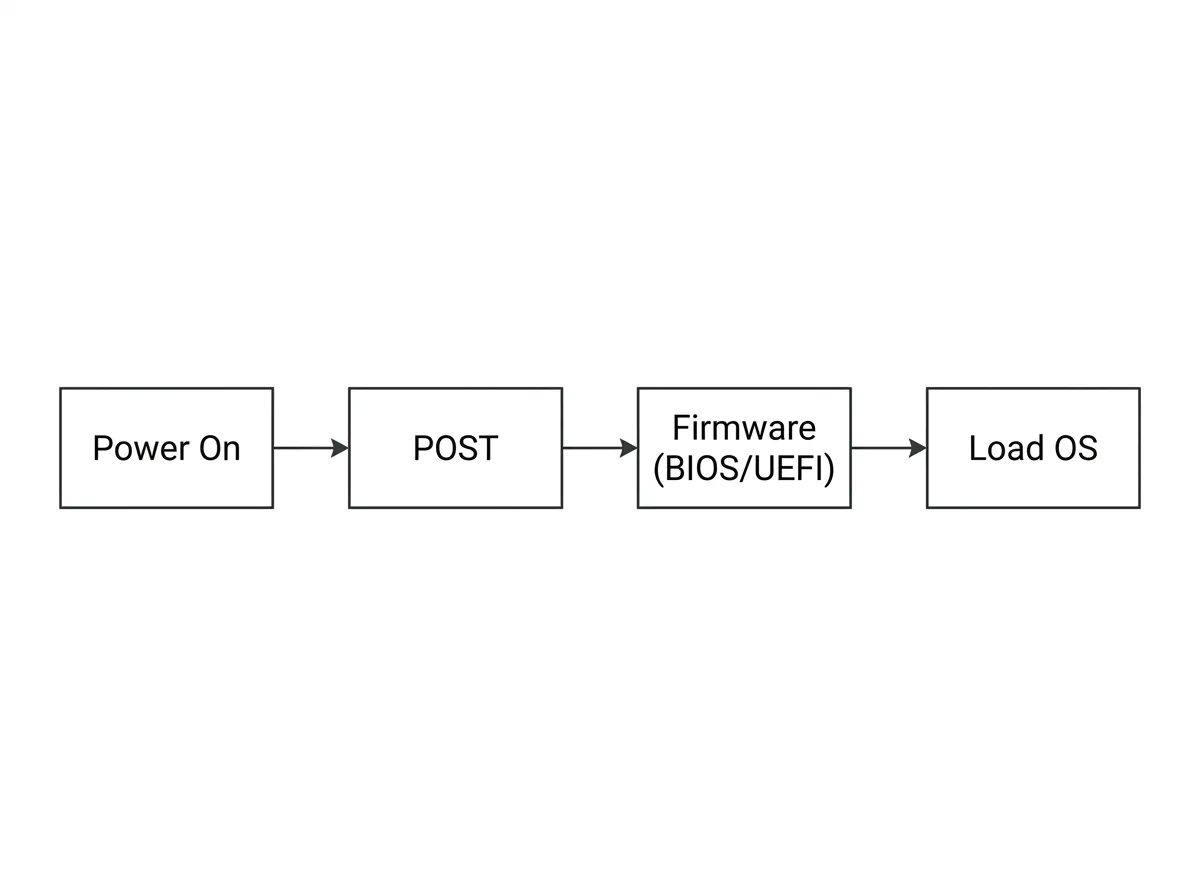
The firmware first runs POST, the Power-On Self-Test, to verify that basic hardware is present and working well enough to continue; how POST failures are reported through beep codes and diagnostic lights is covered in the POST Beep Codes article in the PC Hardware Troubleshooting section later in the course.
After the hardware check, the firmware looks for a bootable device. This could be an internal SSD, hard drive, USB flash drive, optical disc, or network boot source. Once it finds a valid boot option, it starts the process of loading the operating system.
BIOS vs. UEFI Interface
Traditional BIOS menus are usually simple and text-based. They often use a blue, gray, or black screen with keyboard-only navigation. BIOS menus are usually organized into basic sections such as Main, Boot, Security, and Exit.
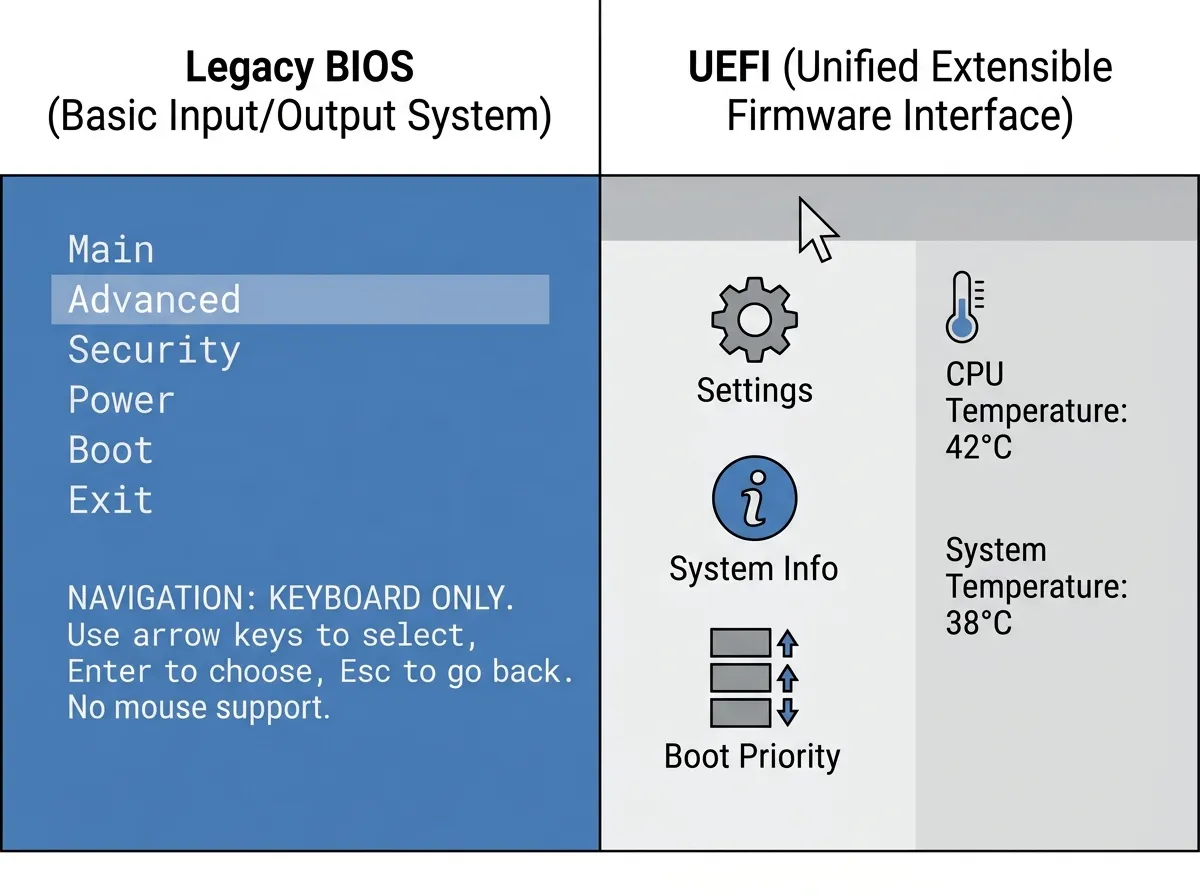
UEFI menus may look similar, but many modern UEFI systems include graphical menus, mouse support, hardware monitoring screens, fan control pages, and more detailed configuration options.
Some UEFI systems still use a simple text-based layout, so the appearance alone does not always prove whether the system is BIOS or UEFI. The available features are often a better clue.
For example, if the firmware supports Secure Boot and UEFI boot entries such as Windows Boot Manager, it is most likely using UEFI.
Boot Differences
One of the biggest differences between BIOS and UEFI is how they handle booting.
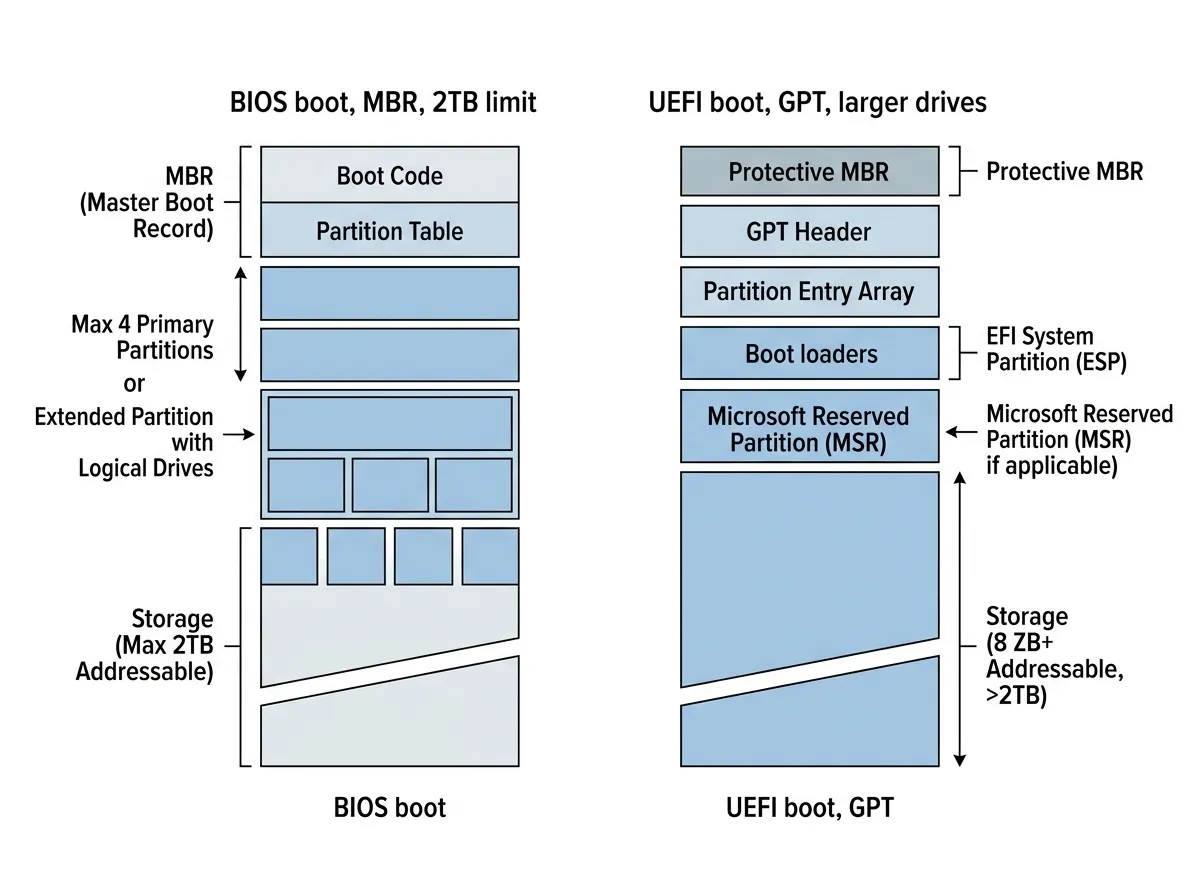
Traditional BIOS usually boots from a drive using older methods connected to the master boot record, often called MBR. MBR is an older partitioning method with more limitations.
UEFI commonly uses GPT, which stands for GUID Partition Table. GPT is a newer partitioning method that supports larger drives and more partitions. Modern Windows installations usually use UEFI with GPT.
In UEFI systems, the boot option may appear as Windows Boot Manager instead of only showing the physical storage drive. This is normal. Windows Boot Manager points to the correct startup files for Windows.
A technician should understand this because choosing the wrong boot option can prevent the system from starting correctly. Configuring boot priority and using the one-time boot menu are covered in the Boot Order and Boot Options article.
Secure Boot
Secure Boot is one of the most important UEFI security features and a key difference from traditional BIOS, which has no equivalent. It makes sure that only trusted boot software loads during startup, protecting the system from malware that tries to load underneath the operating system where normal security tools cannot see it.
Because Secure Boot can also block older operating systems, recovery tools, and some bootable USB utilities, a technician may disable it temporarily for certain tasks — but never without a reason in a business, school, or managed environment.