RAM, or random-access memory, is one of the most important parts of a computer. It gives the system temporary workspace for the operating system, applications, browser tabs, files, and background processes. When RAM works correctly, the computer can quickly access the data it needs while the system is powered on.
When RAM has a problem, the symptoms can be confusing. A bad stick of RAM can cause a computer to run slowly, crash randomly, fail to boot, freeze during use, or show a blank screen. Some RAM issues look like motherboard problems, CPU problems, power problems, or software problems. This is why IT technicians need to understand common RAM issues and how to troubleshoot them carefully.
Why RAM Problems Can Be Hard to Identify
RAM problems are not always obvious. A failed hard drive may make clicking noises, and a bad fan may stop spinning, but RAM often fails silently. The system may start normally one day and crash the next. A computer may work fine during light use but fail when gaming, multitasking, or running a memory-heavy application.
RAM problems can also appear randomly. A user may say, “My computer freezes sometimes,” or “It restarts for no reason.” These symptoms could be caused by bad RAM, overheating, a failing power supply, driver issues, malware, or operating system corruption.
A good technician does not assume the RAM is bad immediately. Instead, they look at the symptoms, check simple causes first, and test the memory when RAM becomes a likely suspect.
Incorrect RAM Type
One of the most common RAM issues is using the wrong type of memory for the system.
Desktop computers usually use DIMM RAM. Laptops and many small form factor systems usually use SODIMM RAM. These two form factors are different sizes and are not interchangeable.
RAM also comes in different generations, such as DDR3, DDR4, and DDR5. These generations are not physically or electrically compatible with each other. A DDR4 stick will not fit into a DDR5 slot, and a DDR5 stick will not work in a DDR4 motherboard.
A technician should always check the motherboard or laptop specifications before buying or installing RAM. The correct form factor, DDR generation, supported speed, voltage, and maximum capacity all matter.
Scenario: The RAM Does Not Fit
A student is upgrading a desktop computer and buys laptop SODIMM RAM by mistake. When they open the desktop, they notice the RAM stick is much shorter than the motherboard’s memory slot.
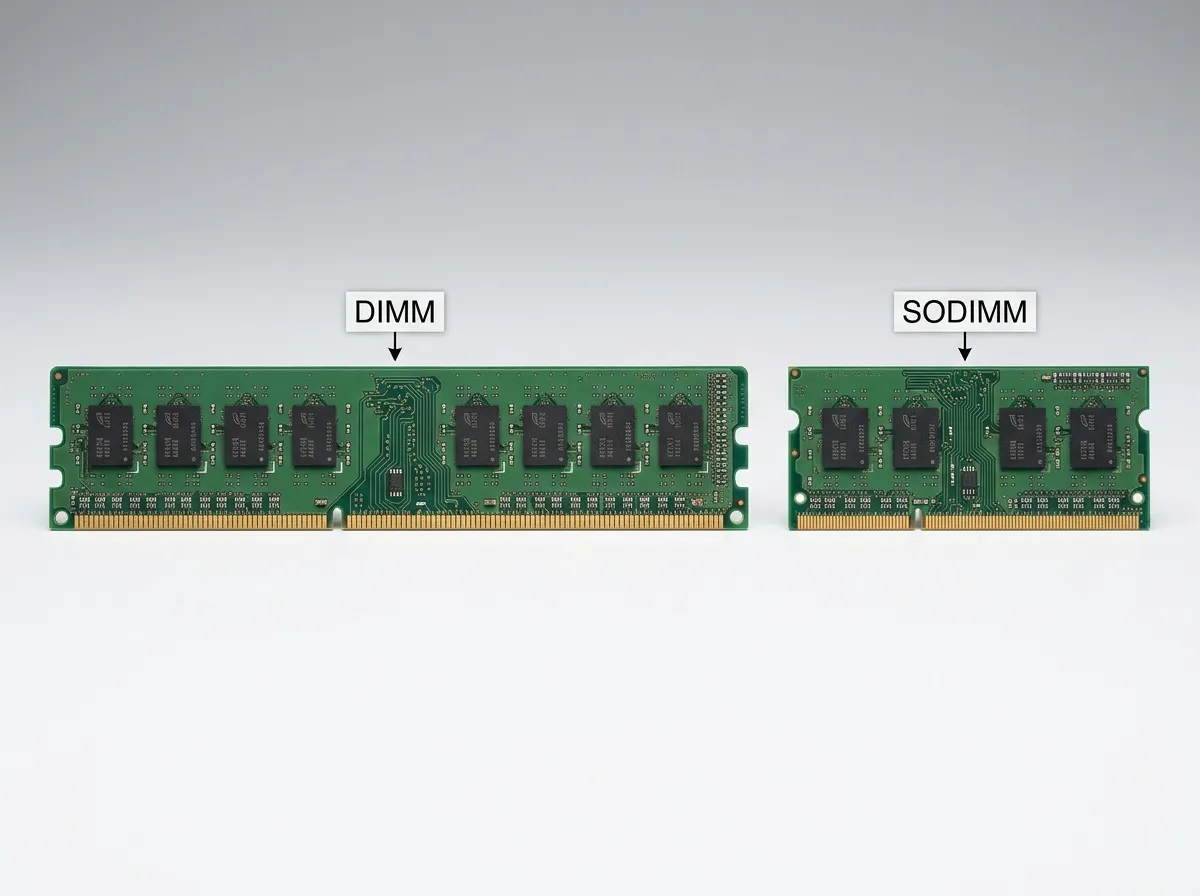
The issue is not that the motherboard is broken. The issue is that the wrong form factor was purchased.
The correct fix is to identify the motherboard’s supported RAM type and purchase compatible desktop DIMM RAM.
This scenario teaches an important lesson: RAM compatibility must be checked before installation.
RAM Not Fully Seated
A very common RAM issue is a stick that is not fully seated in the slot. RAM must be pressed firmly into the slot until it clicks into place. If it is slightly loose, the computer may not boot, may show a blank screen, or may produce beep codes.
This often happens after a RAM upgrade, cleaning, moving a computer, or working inside the case. The RAM may look installed, but one side may not be fully locked in.
A technician should power off the computer, unplug it, use ESD safety, remove the RAM, inspect the slot, and reinstall the module carefully. On many desktop motherboards, the locking tabs should snap into place when the RAM is seated correctly.
Scenario: The Computer Has a Blank Screen After a RAM Upgrade
A user upgrades from 8 GB to 16 GB of RAM. After the upgrade, the computer powers on, fans spin, but the monitor stays blank.
A likely cause is that the RAM is not seated correctly or is incompatible with the motherboard.
The technician should first turn off the system and reseat the RAM. If that does not work, they should try one stick at a time in the recommended slot. If one stick works and another does not, one module may be faulty. If neither works, the RAM may be incompatible or the motherboard may require a BIOS or UEFI update.
Bad RAM Module
RAM can fail. A bad RAM module may cause random crashes, application errors, blue screens, corrupted files, or failure to boot.
Bad RAM is especially frustrating because the computer may still start. It may only crash under certain conditions, such as when many programs are open or when a specific memory area is used.
To test for bad RAM, technicians can use memory diagnostic tools. Windows includes a built-in Windows Memory Diagnostic tool, and technicians may also use bootable tools such as MemTest86 or other diagnostic environments.
If the test finds errors, the faulty RAM should usually be replaced. RAM errors are not something a technician should ignore because they can lead to unstable performance and data corruption.
Scenario: Random Blue Screens and Application Crashes
A user reports that their computer randomly shows crash screens. Sometimes the browser closes by itself. Sometimes a game crashes. Sometimes the system restarts with no clear warning.
The technician checks for overheating, updates drivers, scans for malware, and verifies that storage health is good. If the symptoms continue, RAM becomes a likely suspect.
The technician runs a memory test and finds errors. The system has two RAM sticks installed, so the technician tests each stick separately. One stick passes, and the other stick fails.
The correct fix is to replace the faulty RAM module.
Mismatched RAM
Mixing RAM can cause problems. A system may have two RAM sticks with different speeds, capacities, timings, brands, or voltages. Sometimes mixed RAM works fine, but sometimes it causes instability or forces the system to run at lower speeds.
For example, if one stick is DDR4-3200 and another stick is DDR4-2400, the system may run both at the slower speed. If the modules have incompatible timings or the motherboard does not handle the combination well, the system may crash or fail to boot.
For best results, technicians usually prefer matched RAM kits. A matched kit contains modules designed to work together.
Scenario: The Computer Boots, But RAM Speed Is Lower Than Expected
A user installs DDR4-3200 RAM, but the system reports it running at a lower speed, such as 2133 MT/s or 2400 MT/s (BIOS screens and Task Manager usually label this "MHz", but the number is the transfer rate).
This may not mean the RAM is bad. Many systems default to a safer lower speed until a memory profile is enabled in BIOS or UEFI. On some systems, this setting may be called XMP, EXPO, DOCP, or a similar memory profile name.
The technician should check the motherboard and CPU support before enabling a higher memory profile. Running RAM above the officially supported speed can sometimes create instability.
Wrong RAM Slot or Channel Configuration
Motherboards often have recommended slots for RAM installation. For example, a motherboard with four RAM slots may recommend using the second and fourth slots first when installing two sticks.