CompTIA A+ Core 1 (220-1201) Objective 5.2 focuses on hardware and system symptoms that show up in real support tickets. On the exam, you often win points by spotting the symptom first, then choosing the best next step (not the most advanced fix). That pattern matters because many issues share the same surface signs.
This article zooms in on drive and RAID issues: slow reads, missing volumes, S.M.A.R.T. warnings, degraded and failed arrays, rebuilds that stall or fail, and the boot errors that follow. You'll learn how to tell a cable problem from a dying disk, a controller fault from a drive fault, and a "RAID not found" message from a "no bootable device" message, so your first action protects the data instead of risking it.
General system symptoms such as overheating, burning smells, random shutdowns, swollen capacitors, and an inaccurate system clock are covered in depth in the Hardware Symptoms pt.2 lesson, so here they appear only where they intersect with storage.
Start with a safe, repeatable troubleshooting routine (before you touch anything)
Hardware symptoms can feel random, yet a consistent routine keeps you calm and accurate. First, protect data and prevent damage. Then, gather facts before swapping parts. This matters on the CompTIA A+ 220-1201 exam because many answer choices look reasonable, but only one reflects the best next step.
A good baseline flow is simple: observe the symptom, record what changed, confirm whether the issue happens before Windows loads, and only then test one variable at a time. Treat the system like a crime scene. If you start moving "evidence" too early, you lose the story of what failed first.
If you can't explain what you changed, you can't trust the result. Change one thing, then re-test.
Quick triage questions that narrow the cause fast
Before you open the case, ask a short set of questions and write the answers down. These questions quickly separate power, heat, storage, and firmware problems.
- When did it start, and how often does it happen? If failures cluster after long uptime, heat or memory issues rise on the list. If it fails instantly, suspect power, shorting, or firmware settings.
- What changed right before it started (update, new drive, RAM, move, cleaning)? A BIOS update can trigger boot problems. A moved desktop can loosen a SATA cable. A new drive can expose a weak PSU under load.
- Does it happen under load, like gaming, backups, or stress tests? Load-related shutdowns often point to overheating, a failing fan, or unstable power delivery.
- Does it happen in BIOS/UEFI, or only inside Windows? If it freezes in BIOS, Windows drivers are not the cause. That pattern points to hardware, thermal problems, or firmware instability.
- Is data missing, are drives "gone", or is a RAID degraded? Missing volumes suggest cable, port, controller, or RAID metadata issues. A degraded array suggests a member drive fault or a controller reporting errors.
- Do you hear beep codes, see diagnostic LEDs, or get SMART warnings? Beeps and board LEDs can indicate CPU, RAM, or GPU faults. SMART alerts point toward a failing drive.
- Was there a recent power outage or surge? After outages, you may see corrupted files, RAID rebuilds, BIOS time resets, or damaged PSUs and surge protectors.
A fast way to interpret answers is to think in layers. Power and heat often create sudden shutdowns and resets. Storage faults often create slow boots, missing files, and crashes during reads or writes. Firmware issues often show up before the OS loads, along with time and boot-order problems.
One safety note before you go further: if you notice strong heat, a burning smell, or swollen components while working inside the case, stop and follow the safety-first steps in the Hardware Symptoms pt.2 lesson before continuing any storage troubleshooting.
Tools and built-in checks you should know for the exam
Once the system is safe to test, use tools that confirm or rule out common causes. On the exam, you often choose a tool based on what it can reveal, not because it is the most advanced option.
Here are core checks worth knowing:
- SMART status (drive health): Shows indicators like reallocated sectors and wear level. A bad SMART report supports drive replacement planning.
- Vendor SSD tools: Report firmware versions, health, temperature, and sometimes run diagnostics. They also help confirm if a firmware update applies.
- Disk Management (Windows): Confirms whether Windows sees the disk, its partitions, and file system state. It helps spot offline disks, missing volumes, or unallocated space.
- Event Viewer: Finds disk, controller, and unexpected shutdown events. Look for disk timeouts, NTFS errors, and repeated storage warnings near crash times.
- Reliability Monitor: Gives a timeline view of crashes, driver failures, and updates. It helps you correlate the first failure with a change.
- Task Manager: Shows CPU, memory, disk, and GPU load. High disk active time with low throughput often hints at drive trouble.
- BIOS/UEFI storage screens: Confirm the drive or array is detected before you blame the OS. If firmware can't see the disk, no Windows tool will fix it.
- RAID management utility or controller BIOS: Shows array status (optimal, degraded, rebuilding, failed), per-member health, and which bay or serial number holds the failing disk.
Used together, these checks create a trustworthy picture. You move from symptoms to evidence, then to the simplest corrective action that fits what you found.
Drive and RAID issues, the signs, the likely cause, and the best next step
Drive and RAID faults rarely start with a clean error message. More often, you see slow boots, missing volumes, random freezes during file access, or a RAID alert that appears after a restart. For the CompTIA A+ 220-1201 exam, the best answers usually focus on safe confirmation steps first, because the wrong action can turn a recoverable problem into data loss.
Treat storage problems like a weak bridge. You can still cross it for a moment, but every extra trip raises the risk. Your next step should protect data, confirm what the firmware and OS can see, and then decide whether you are dealing with cables, settings, a failing drive, or a RAID member that dropped out.
When a drive is missing, unallocated, or won't boot
Start by separating three similar symptoms, because they point to different causes. A drive can be physically missing (not detected), logically missing (seen but no volume), or present but not bootable (seen, yet the system won't start). Each case has a simple first check that saves time.
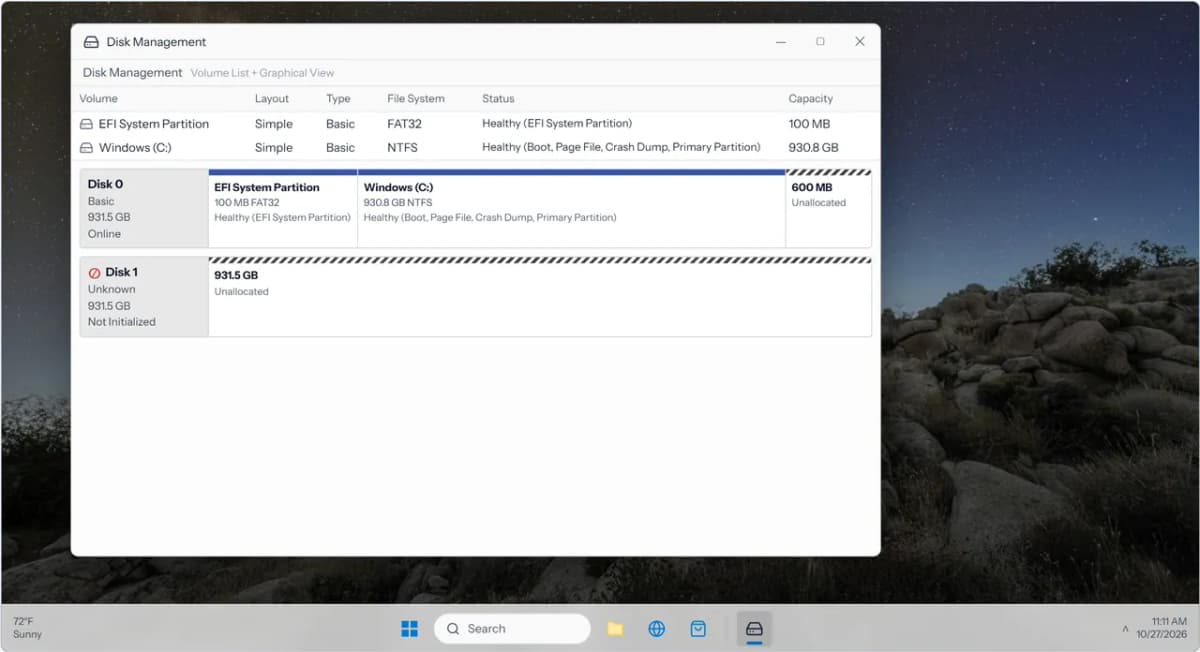
For a drive that is not detected, begin with the basics inside the case. Reseat the data cable and the power cable. Then try a different SATA port, because a single port can fail or get disabled. If you have a spare cable, swap it in, since bad SATA cables are common and cheap. On laptops, re-seat the M.2 drive and confirm the screw and standoff fit, because a loose M.2 can disconnect under heat.
Next, confirm detection in BIOS/UEFI. If firmware doesn't see the drive, the OS will not fix it. While you are there, check storage mode and related settings:
- UEFI vs. Legacy/CSM: A system installed in UEFI mode often won't boot if you flip to legacy, and the reverse is also true.
- Boot order and boot device: After updates or resets, firmware may try a USB device, a network boot, or the wrong drive.
- Correct disk selection: On multi-drive systems, confirm the OS drive is still set as the primary boot choice.
If BIOS/UEFI sees the drive but Windows shows it as unallocated or the volume is missing, think in terms of partition and file system structures. A damaged partition table can make a disk look empty even when data still exists. Similarly, a corrupted boot record or boot configuration can stop booting while the drive remains readable. At a high level, those patterns suggest logical corruption, not an unplugged drive.
A practical exam mindset: first confirm the drive is detected in BIOS/UEFI, then verify the boot mode and boot order, and only then suspect partition or boot record damage.
How to read SMART warnings and other early failure clues
SMART (Self-Monitoring, Analysis, and Reporting Technology) is the drive's internal health reporting system. It tracks error counts and wear indicators that often rise before a full failure. SMART does not predict every failure, but it gives you evidence when a drive starts to degrade.
Some SMART attributes matter more than others in day-to-day support. The following are common red flags because they often correlate with real media damage or a drive that can't reliably read data:
- Reallocated sectors (HDD): The drive moved bad sectors to spares. A growing count suggests the surface is failing.
- Pending sectors (HDD): The drive struggles to read sectors and marks them for re-test. This can cause freezes and file corruption.
- Wear level / percentage used (SSD): NAND flash has a limited write life. A high wear reading means the drive is closer to end-of-life.
- Media and data integrity errors (SSD): Repeated internal errors can signal failing NAND or controller issues.
- High CRC errors (often cable related): On SATA devices, CRC errors can point to a bad cable or noisy connection, not the drive itself. Still, repeated CRC errors are not normal and deserve action.
Besides SMART, watch for early behavior clues. Frequent file system checks, slow file copies that stop and resume, and repeated disk warnings in Event Viewer often appear before a drive fails completely. Another clue is heat. Drives that run hot for long periods tend to degrade faster, especially in small cases with poor airflow.
SMART matters even more inside a RAID set. Many hardware RAID controllers hide member drives from the OS, so Windows tools may show only the logical volume and report it as "healthy" while a member is quietly failing. In that case, read per-member SMART data through the RAID management utility or controller BIOS. A member with climbing reallocated or pending sectors is your next failure, and replacing it proactively, during a maintenance window, beats an emergency rebuild after it drops out on its own.
A simple rule keeps you safe and matches exam logic: if SMART warns, or if storage errors repeat, back up now and plan a replacement. Don't wait for a drive to "prove" it is dead. Also, remember that SSDs can fail with no sound at all. You may only see sudden read-only behavior, missing volumes, or boot failures.
Unusual drive noise and what it usually means
Noise matters most for traditional hard drives, because they have moving parts. When the sound changes, the mechanism often changed too.