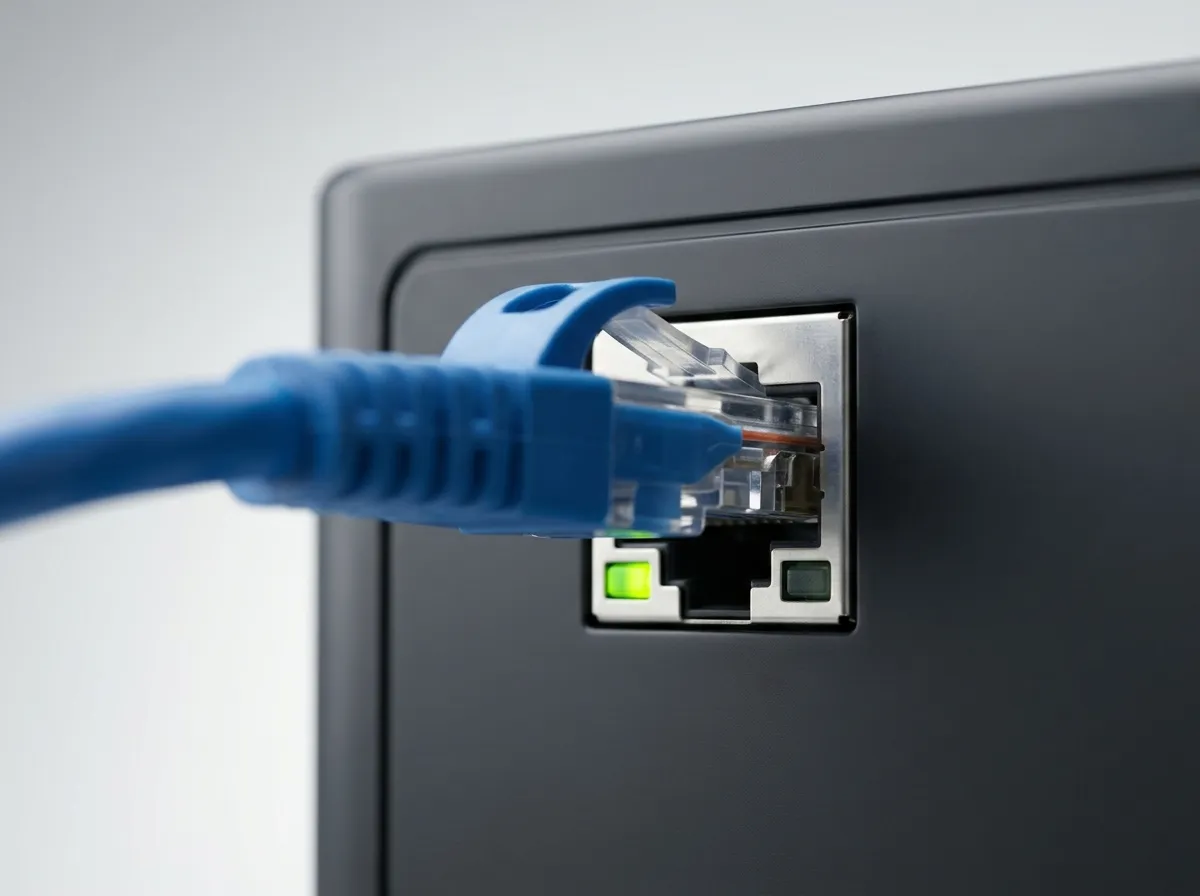
Ethernet ports often include small indicator lights that provide information about a network connection. These lights can help a technician quickly determine whether a physical connection exists, whether data is being transferred, what speed the connection is using, and whether Power over Ethernet is being delivered.
Indicator lights are commonly found on network interface cards, switches, routers, wireless access points, docking stations, and other Ethernet devices. Their exact colors and patterns vary by manufacturer, so technicians should consult the device documentation when the meaning is unclear.
Even when the colors differ, the indicators generally represent four basic conditions:
Link status
Network activity
Negotiated speed
Power over Ethernet status
Understanding these indicators can help technicians troubleshoot problems before using advanced commands or testing equipment.
Ethernet Ports
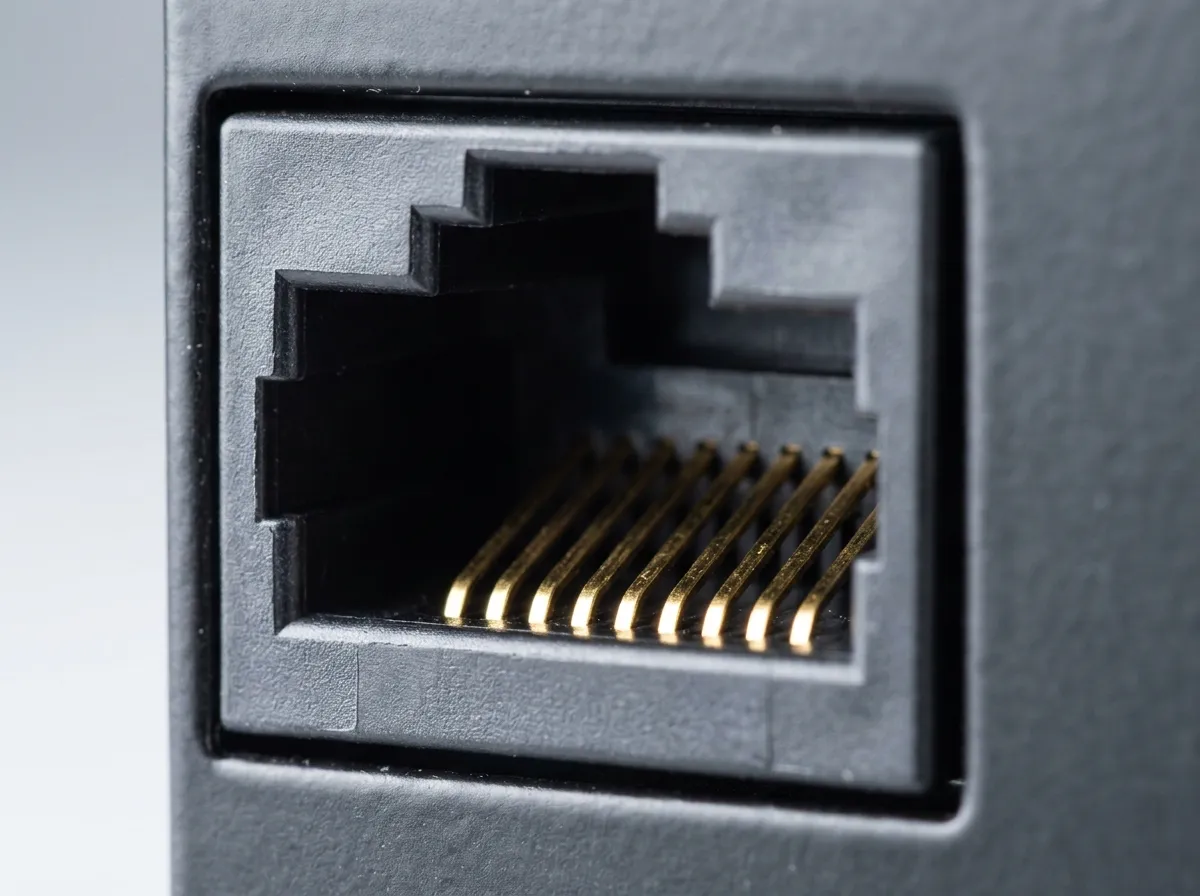
An Ethernet port provides the physical connection between a network device and twisted-pair copper cabling.
Most common Ethernet ports accept an RJ45-style connector. The connector includes a locking tab that helps hold the cable securely in place.
Ethernet ports may be found on:
Desktop computers
Servers
Laptops and docking stations
Switches
Routers
Wireless access points
Network printers
Security cameras
Voice over IP phones
Smart televisions
Game consoles
A network interface card may contain one Ethernet port, while a switch may contain several dozen ports.
Each port may also have one or more small light-emitting diodes, commonly called LEDs.
The Purpose of Ethernet Indicator Lights
Ethernet indicator lights provide immediate information about the physical network connection.
A technician can often answer several important questions by looking at the port:
Is the cable connected?
Has the port established a link?
Is the port sending or receiving traffic?
What speed did the connection negotiate?
Is the port supplying PoE power?
Is the port reporting a fault?
Indicator lights do not provide a complete diagnosis. A port may show an active link even when the device has an incorrect IP address, blocked application, or unavailable internet connection.
However, the lights are useful for determining whether the technician should begin with the physical connection or investigate a higher-level configuration problem.
Link Lights
A link light indicates whether the Ethernet port has established a physical connection with the device at the other end of the cable.
When the link light is illuminated, the port has detected another compatible Ethernet device and completed the basic link process.
For example, when a computer is connected to a powered switch using a functional cable, the link indicators on the computer and switch should normally illuminate.
A steady link light generally means:
The cable is connected.
The devices can detect each other.
The network interface is enabled.
A basic physical Ethernet link has been established.
The light does not necessarily mean the device has a valid IP address or can access network resources.
No Link Light
If the link light remains off, the technician should focus on the physical connection and hardware.
Possible causes include:
Ethernet cable is disconnected.
Cable is damaged.
RJ45 locking tab is broken.
Network interface is disabled.
Network interface driver is missing.
Switch is powered off.
Switch port is disabled.
Switch port has failed.
Network interface card has failed.
Wall jack is damaged.
Patch-panel connection is missing.
Cable conductors are incorrectly terminated.
Unsupported cable or transceiver is installed.
A missing link light is usually a Physical-layer symptom.
Troubleshooting a Missing Link Light
The technician should begin with the simplest tests.
First, reseat the Ethernet cable at both ends. The connector should click securely into the port.
Next, replace the patch cable with a known-good cable. If the link appears, the original cable was probably damaged.
If the link remains down, try another switch port. The technician should also verify that the switch is powered on and that the port is not administratively disabled.
On the computer, check whether the network interface appears in the operating system and is enabled. Device Manager may show a driver or hardware error.
When the connection passes through a wall jack, the technician may need to inspect the entire physical path:
Computer → patch cable → wall jack → permanent cable → patch panel → patch cable → switch
A missing or incorrectly placed patch cable in the network closet can prevent the link from being established.
Activity Lights
An activity light indicates that the port is sending or receiving Ethernet traffic.
The activity indicator commonly flashes when frames pass through the port. The amount of flashing may increase as network traffic increases.
Examples of activity that may cause the light to flash include:
Opening a website
Downloading a file
Streaming video
Sending a print job
Accessing a file server
Receiving a DHCP address
Running a ping test
Installing an update
A flashing activity light usually indicates normal network communication.
Constant or Frequent Activity
An activity light may flash frequently even when the user is not actively using the computer.
Modern systems regularly perform background network communication, including:
Checking for updates
Synchronizing cloud storage
Receiving email
Renewing DHCP information
Communicating with security software
Discovering network devices
Backing up files
Maintaining application sessions
Frequent activity does not automatically indicate a problem.
However, unusually heavy activity may justify further investigation if it is accompanied by slow performance, unexpected data usage, or possible malware symptoms.
Link and Activity on the Same LED
Some Ethernet ports use separate lights for link and activity. One light remains steadily illuminated to indicate a link, while another flashes to indicate traffic.
Other ports combine both functions into one LED. The light may remain on when a link is established and flash when traffic passes through the port.
For example:
Light off: No link
Light steady: Link established
Light flashing: Link established and traffic detected
Technicians should not assume every manufacturer uses the same design.
Speed Indicators
Ethernet ports may use colors or separate LEDs to indicate the negotiated connection speed.
A switch port might use one color for a 100 Mbps connection and another for a 1 Gbps connection. A multi-gigabit switch may use additional colors or blinking patterns for 2.5, 5, or 10 Gbps connections.
One possible design might use:
No speed light for 10 or 100 Mbps
Green for 1 Gbps
Amber for 2.5 or 5 Gbps
Blue for 10 Gbps
Another manufacturer may use completely different colors.
There is no universal color standard that applies to all NICs and switches. The label printed on the equipment or the manufacturer’s documentation is the most reliable source.
Interpreting an Unexpected Speed Light
Suppose a computer and switch should support 1 Gbps, but the switch indicates a 100 Mbps connection.
The lower negotiated speed may be caused by:
Damaged wire pair
Poor RJ45 termination
Poor punchdown connection
Older Ethernet cable
Older NIC
Older switch port
Incorrect speed setting
Faulty docking station
Low-speed USB Ethernet adapter
Excessive cable length
Gigabit Ethernet over twisted-pair cable normally requires all four wire pairs. A damaged pair may cause the connection to fall back to 100 Mbps, which can operate using fewer pairs.
The link light may still appear normal, but the speed indicator reveals that the connection is not operating as expected.
Checking Negotiated Speed in the Operating System
Indicator lights provide a quick visual clue, but the technician can also verify the link speed through software.
In Windows, the negotiated speed can often be found in the network adapter’s status or properties.
The operating system may display values such as:
100 Mbps
1.0 Gbps
2.5 Gbps
5.0 Gbps
10.0 Gbps
A managed switch may also display the negotiated speed and duplex setting for every connected port.
If the switch and operating system report different information, the technician should verify that the correct physical port and network adapter are being examined.
Auto-Negotiation
Most modern Ethernet devices use auto-negotiation.
During auto-negotiation, the devices at both ends of the cable advertise their supported speeds and duplex modes.