Expansion cards are one of the simplest ways to add or upgrade PC features without replacing the whole system. In CompTIA A+ Core 1 (220-1201) Objective 3.5, you need to know how these cards connect through motherboard expansion slots and what problems they solve in real builds.
This objective focuses on four common card types: sound cards, video cards, capture cards, and network interface cards (NICs). For each, you’ll see what it does, when you’d install it, and the basic hardware details that matter on the exam.
CompTIA questions often test practical judgment, not trivia. Expect scenarios about use cases, common ports and connectors, performance limits (like bandwidth and power needs), and troubleshooting basics such as driver issues, device detection, and simple no-signal or no-link symptoms. By the end of this section, you should be able to identify each card quickly and choose the right one for a given task.
Expansion cards explained in plain English: what they are and how they connect
An expansion card is a small circuit board you plug into a motherboard to add a feature or improve one you already have. In A+ terms, this is how a desktop PC gains better graphics (video card), higher-quality audio (sound card), video input for recording (capture card), or network ports and wireless support (NIC). Most cards connect through a standard slot on the motherboard, then expose ports at the back of the PC through a metal bracket.
The key idea is simple: the motherboard provides a data connection (the slot), and the PC case provides physical access (the rear opening). Once installed, the operating system still needs the right software (drivers) to use the hardware.
PCIe basics you need for the A+ exam
PCI Express (PCIe) is the main expansion slot type in modern PCs. Think of PCIe like a highway between the card and the CPU chipset. A wider highway can carry more traffic at once, which matters most for high-bandwidth devices like video cards and some capture cards.
PCIe uses lanes, which are the individual data paths. Lane counts are written as:
x1: low bandwidth, common for simple NICs, sound cards, USB expansion cardsx4: more bandwidth, sometimes used for storage or capture cardsx8: high bandwidth, seen in some workstation cards and adaptersx16: highest common lane count, standard for most GPUs
In plain terms, more lanes usually means more potential speed, because more data can move at the same time. Exam questions often connect this to real choices: a basic wired NIC doesn’t need x16, but a GPU benefits from it.
One detail that confuses many people is physical size vs electrical lanes. A slot can be physically long (looks like x16) but only wired for fewer lanes (like x4). That means a full-length card may fit, but it will only run at the lanes the board provides. The reverse also matters: a small x1 slot cannot accept a longer x16 card.
Compatibility is usually friendly, but not magic. Newer PCIe cards often work in older PCIe slots, as long as the motherboard firmware supports the device. When that happens, the card runs at the older PCIe generation speed (and sometimes at fewer lanes if the slot provides less). For A+ troubleshooting, this explains why a card can function correctly while still performing below expectations.
Power, cooling, and space checks before you buy a card
Before you install any expansion card, check three real limits: power, cooling, and physical fit. Many “it won’t work” issues come from these basics, not from the slot itself.
Start with power. The PCIe slot can provide some power, but high-demand cards, especially GPUs, often need extra power from the PSU. That’s why you see PCIe power connectors such as:
- 6-pin PCIe: common on older or midrange GPUs
- 8-pin PCIe (sometimes 6+2): common on newer GPUs and higher-draw cards
If a GPU needs an 8-pin connector and you do not have one, the system may not boot, may crash under load, or the card may not initialize. For the A+ exam, remember the practical rule: the slot handles data and some power, but many cards need dedicated PSU leads.
Next is cooling. A high-performance video card can dump a lot of heat into the case. Poor airflow can cause throttling (lower speed to reduce heat), driver timeouts, or random shutdowns. In a small case, the same GPU can behave worse than in a well-ventilated tower. A quick check is to confirm you have enough case fans, clean airflow paths, and no blocked intakes.
Finally, confirm the card fits. These are the common fit checks A+ likes to test:
- Bracket height: standard-height vs low-profile (common in small form factor PCs)
- Slot width: single-slot vs dual-slot (many GPUs take two rear openings)
- Length and clearance: the card should not hit drive cages, front fans, or thick cable bundles
Small cases create common clearance problems. Even if the motherboard has the right PCIe slot, a long GPU can collide with the front of the case, or power cables can press against the side panel. A careful fit check saves a lot of time.
Drivers and firmware: the hidden piece that makes cards work
An expansion card is hardware, but drivers are what make the operating system use it correctly. A driver is a small piece of software that tells Windows how to talk to that specific device. Without the right driver, you often get symptoms that look like hardware failure.
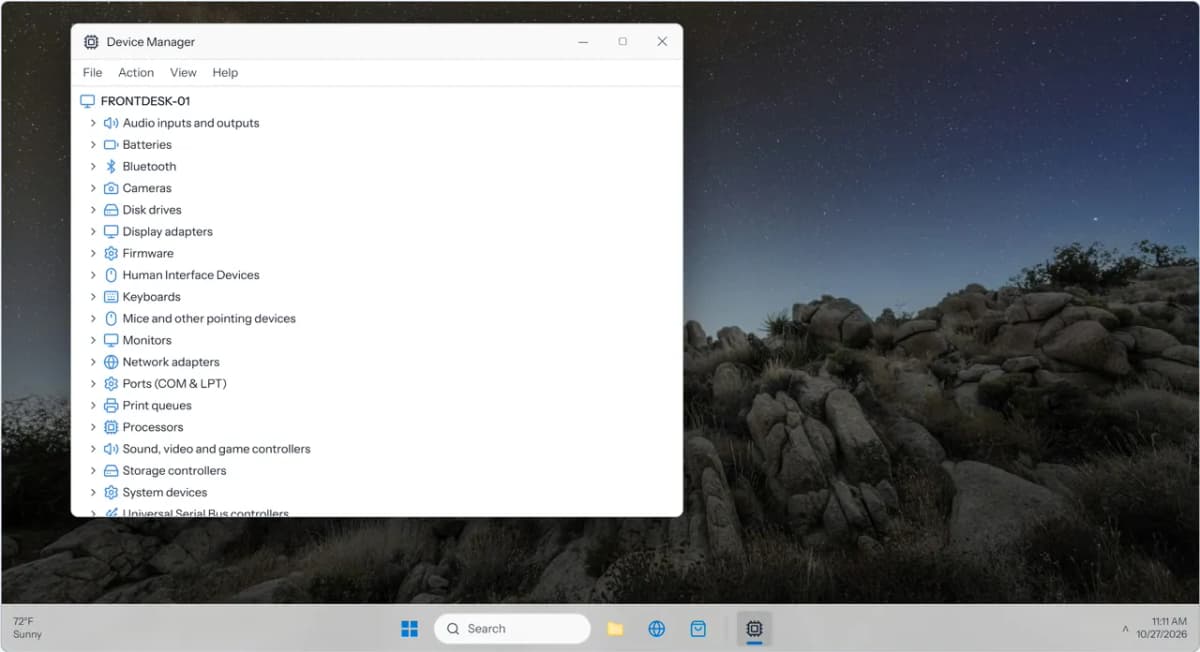
Common examples map directly to Objective 3.5:
- A sound card installs, but you get no audio output or missing input options.
- A NIC appears in Device Manager, but you have no link or poor throughput.
- A GPU outputs video, but performance is weak, resolution options are limited, or you see display glitches.
- A capture card is detected, but recording software cannot access it.
For driver sources, use a simple decision rule. Windows Update is often enough for basic function, and it is a good first step in business environments. For best performance and full features (common with GPUs, Wi-Fi adapters, and capture devices), install the vendor driver from the manufacturer (NVIDIA, AMD, Intel, Realtek, or the card vendor). Wrong or generic drivers can cause missing features, unstable behavior, or poor performance.
Firmware and BIOS/UEFI settings can also affect whether a card works. You do not need deep firmware theory for A+, but you should know the common controls:
- Onboard devices: Some BIOS/UEFI menus let you disable onboard audio or onboard NIC. If the onboard device is disabled, you may need an expansion card, or you may need to re-enable it during troubleshooting.
- Primary display: Systems can be set to prefer integrated graphics or PCIe graphics. A wrong setting can lead to “no signal” confusion after a GPU install.
- Secure Boot and driver signing: Modern Windows systems prefer signed drivers. Unsigned or tampered drivers may not load, which can make the card appear present but unusable.
When a new expansion card “does nothing,” check the basics in order: seating in the slot, required PSU connectors, and the correct driver. That sequence solves most real-world A+ scenarios.
Sound cards: when onboard audio isn’t enough
Most motherboards include onboard audio, and for everyday use it often works well. The limits show up when you need cleaner sound for recording, more stable drivers, better shielding from electrical noise, or support for multiple speaker channels and inputs. A dedicated sound card (PCIe) or an external adapter can also be a practical fix when onboard audio fails or when front audio ports stop working.
For the CompTIA A+ exam, focus on two things: recognizing common audio ports and troubleshooting simple sound problems. Many “sound card” tickets are not hardware failures. They come from the wrong jack, a muted device, or a driver that never installed correctly.
Common ports and connectors you should recognize
Sound cards and motherboard audio both use a familiar set of connectors. On the exam, you should be able to identify them and match them to the right device.
3.5 mm analog jacks are the most common. They look the same, so the color and labels matter.
- Line out (headphones or speakers): Sends audio to output devices. On desktops, this is often the green jack. If a user plugs speakers into the wrong jack, they may hear nothing.
- Mic in (microphone input): Accepts a low-level mic signal (often pink). Plugging a headset mic into line in can make the mic seem “dead” because the signal level is too low.
- Line in (external audio source input): Accepts a stronger signal from a device like a phone, mixer, or another PC (often blue). Line in is not the same as mic in.
Many PCs also include optical S/PDIF (TOSLINK). This uses light to send digital audio to a receiver, soundbar, or DAC. Optical is useful when you want to avoid analog noise or run audio to home theater gear, but it depends on the device at the other end supporting S/PDIF formats.
Inside the case, you may run into the front-panel audio header on the motherboard (often labeled HD_AUDIO). The case’s front headphone and mic ports connect here. If the header cable is loose, installed on the wrong pins, or the case uses a damaged cable, the front ports can fail while rear ports still work.
Speaker setups also map to ports:
- 2.0: Two speakers, left and right.
- 2.1: Two speakers plus a subwoofer (sub often connects through the speaker set, not a separate PC jack).
- 5.1 and 7.1: Surround sound that may use multiple 3.5 mm outputs (separate jacks for front, rear, center/sub, and side). A common mistake is plugging only into the main line out jack, then wondering why rear speakers are silent.
When audio “half works,” suspect the simple causes first: the wrong jack, the wrong output mode (stereo vs surround), or front-panel ports that are not connected to the header.
Typical sound card problems and quick fixes
Sound issues can look mysterious, but most fixes follow a short, repeatable process. Start with what the OS sees, then check the physical layer.
No audio is often a settings problem, not a dead sound card. In Windows, confirm the correct output device is selected (for example, speakers vs HDMI audio vs a headset). Then check volume and mute states in the system tray and in the app itself. It’s common for a browser tab, meeting app, or game to be muted while Windows is not.
If the device is missing or has an error, open Device Manager:
- Look for the sound device under Sound, video and game controllers.
- Check for a warning icon that suggests a driver problem.
- If the device is not present, reseat an internal PCIe sound card, try a different slot if available, and confirm onboard audio is enabled in BIOS/UEFI when you are using it.
Distorted audio often points to a bad connection, wrong level, or interference. Swap the cable, test a different port (front vs rear), and try known-good headphones. Also check if the audio enhancements or spatial sound features are causing issues, disabling them can restore clean output. Distortion that only happens at high volume can be simple speaker overload, not a PC fault.
Mic not working usually comes down to the wrong input choice. Many headsets use a 4-pole TRRS plug, while desktops often expect separate headphone and mic plugs. If the user has a single-plug headset, they may need a splitter. In Windows sound settings, confirm the correct input device is selected and that microphone privacy permissions allow the app to access it.
Wrong playback device is common after adding a GPU or docking station. HDMI and DisplayPort can present themselves as audio devices, which can steal the default output. Set the intended device as default, then test again.
Muted volume sounds obvious, but it is a top cause in the field. Check physical volume wheels on speakers and headsets, then the Windows mixer, then the app mixer.
Missing drivers still cause many failures. If Windows used a generic driver, features like surround output or mic boost may be missing. Install the vendor driver for the chipset or the sound card model. IRQ conflicts are rare on modern systems because PCIe and the OS handle resources well, but driver conflicts and bad updates still happen and can break audio overnight.
A fast way to isolate hardware versus settings is to test with known-good speakers or headphones, then test the same device on another PC.
When a USB audio adapter is the better answer
A USB audio adapter is often the quickest fix when you need sound now. It is especially practical for laptops, systems with broken onboard audio, or situations where you want to test whether the problem is inside the PC.
In troubleshooting, USB audio helps you separate causes:
- If USB audio works, the issue is likely the onboard audio path (drivers, jacks, front-panel header, or the internal sound device).
- If USB audio also fails, focus on OS settings, the application, or the output device.
The tradeoffs are simple. A USB adapter uses a port, adds a small device to manage, and can create cable clutter on a desk. Still, for many A+ style scenarios, it is the most practical answer because it avoids opening the case and it usually installs with minimal driver effort.
Video cards (GPUs): what they do and how to match them to the job
A GPU (graphics processing unit) renders images for your display.