Display panels show up in almost every support ticket, from dim laptop screens to odd phone colors. CompTIA A+ 220-1201 Objective 3.1 expects you to recognize the common panel types and explain what they mean for real users. In practice, you’ll see these technologies in laptops, desktop monitors, phones, and tablets, and each one has clear tradeoffs.
This guide starts with the LCD (liquid crystal display), a screen type that uses liquid crystals to control light from a backlight. You’ll learn how IPS (in-plane switching), TN (twisted nematic), and VA (vertical alignment) differ in viewing angles, color, contrast, and response time, which are the details people notice first.
Then it covers OLED (organic light-emitting diode), where each pixel makes its own light, and Mini-LED, which is still an LCD but uses many tiny LEDs for tighter backlight control. By the end, you’ll be able to describe LCD basics, tell IPS vs TN vs VA apart, explain OLED and Mini-LED in plain terms, and pick a panel that fits a user’s work, budget, and viewing needs.
Start with the basics, how LCD screens work and why the backlight matters
Before IPS, TN, and VA panel types make sense, you need a clear picture of what an LCD is doing. An LCD panel does not “make” light. It controls light coming from behind the panel. That one fact explains many common user complaints, such as grayish blacks, uneven brightness at the edges, and why turning up brightness can make dark scenes look washed out.
Think of an LCD as a very precise set of window blinds placed in front of a lamp. The lamp is the backlight. The blinds are the liquid crystals. The colored film on the window is the subpixels. Your job on the A+ exam is not to recite physics, it’s to connect this mental model to what users see on screen.
LCD in one minute, backlight, pixels, and what the liquid crystals actually do
A screen image is built from pixels, which are the tiny dots that form the picture. Each pixel is usually made of three subpixels: red, green, and blue (RGB). By changing how bright each subpixel gets, the display can create many colors. White comes from lighting all three subpixels strongly. Black comes from trying to block the light.
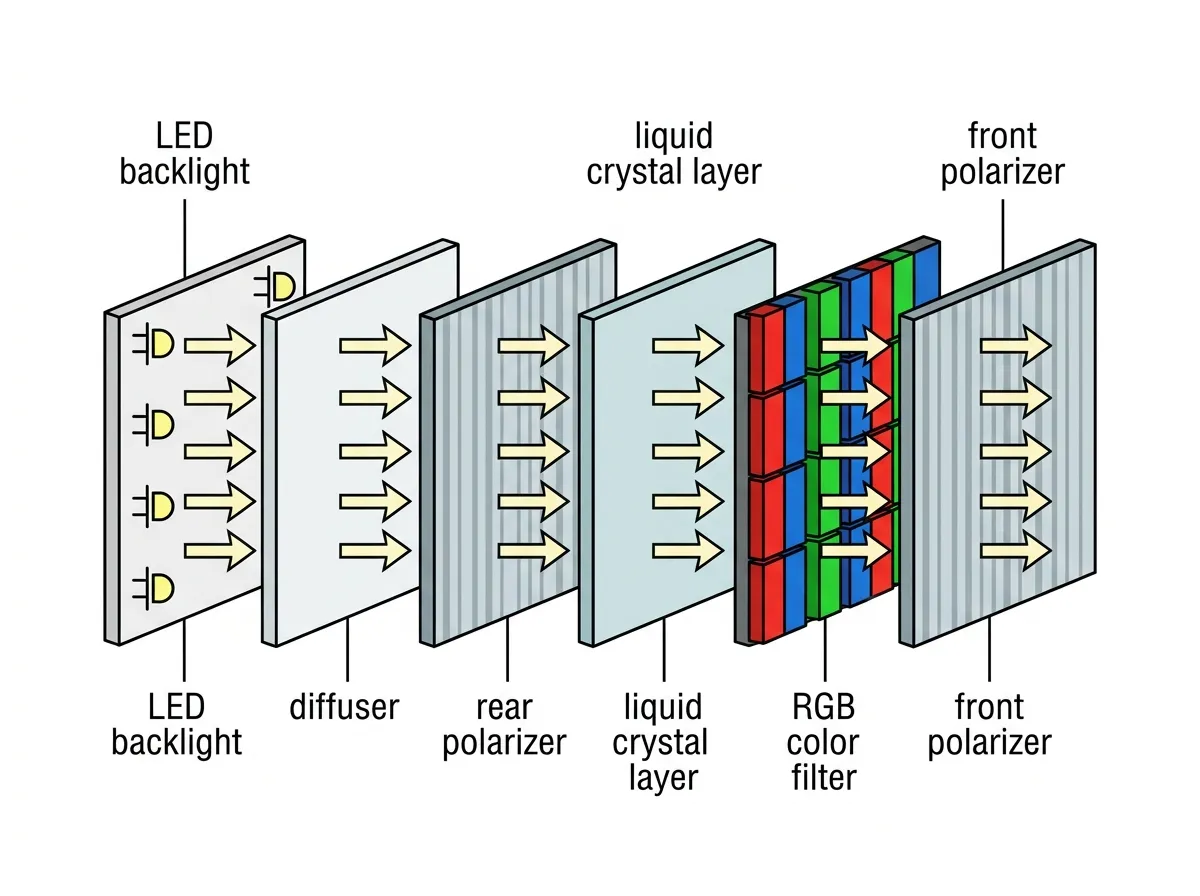
Here’s the key role of liquid crystals: they act like light valves. Liquid crystals can twist or align when voltage is applied. That movement changes how much backlight is allowed through each subpixel. If the crystals block most of the light, the subpixel looks dark. If they allow more light, it looks bright. The color filters for RGB do not change; what changes is how much light gets through each filter.
The backlight is usually LED-based in everyday devices. You may hear a few common terms:
- LED-backlit LCD: the typical laptop and monitor screen. The light source is LEDs, not older fluorescent tubes.
- Edge-lit: LEDs sit around the edges, and a light guide spreads the light across the panel.
- Direct-lit / full-array: LEDs sit behind the panel for more even lighting. Basic direct-lit sets have no dimming zones; full-array local dimming (and Mini-LED) adds zones that dim independently for deeper blacks.
Brightness is commonly measured in nits (roughly, how much light the screen outputs). Higher nits help in bright rooms and near windows. It also helps when users say, “This screen looks dim,” even at 100% brightness. Just remember the tradeoff: high brightness can expose LCD limits, because pushing the backlight harder can make blacks look more gray.
What LCD is good at and where it struggles
LCD remains popular because it solves most everyday needs at a reasonable cost. It is widely available, easy to source in many sizes, and works well across office, school, and home setups. For support and purchasing decisions, LCD is often the default “good enough” choice.
LCD tends to perform well in a few areas:
- Price and availability: Most budget to midrange laptops and monitors use LCD panels, so replacements and options are common.
- Good brightness: Many LCDs reach solid nit levels for classrooms, offices, and general home use.
- Low burn-in risk: LCDs usually handle static content (taskbars, menus, spreadsheets) without the same long-term burn-in concerns associated with some self-lit displays.
LCD also has well-known limits, most tied to the backlight:
- Weak black levels: Since the backlight is always on, “black” often looks dark gray, especially in a dim room.
- Backlight bleed and uneven uniformity: Light can leak around edges or corners, making dark screens look patchy.
- Angle-related glow or color shift: At off-angles, many LCDs look washed out, or blacks look brighter than they should.
These tradeoffs show up in common user scenarios:
- Office work: Spreadsheets and web apps look crisp and bright, but a user may notice uneven lighting on a white background.
- School laptops: LCD is cost-effective and bright enough for mixed lighting, but students may complain about poor viewing angles during group work.
- Basic gaming: LCD can feel responsive and bright, but dark game scenes may look flat, and edge bleed can distract during night levels.
This is why the backlight matters in troubleshooting. When a user describes “glow,” “gray blacks,” or “bright corners,” they are often describing backlight behavior, not a GPU problem.
IPS, TN, and VA compared, how each LCD panel type behaves in the real world
When someone says a screen “looks washed out,” “smears in motion,” or “turns gray from the side,” they are often describing the LCD panel type, not the GPU or the cable. IPS, TN, and VA all use the same basic LCD idea (a backlight plus liquid crystals that block or pass light), but they arrange and move those crystals in different ways. That changes what you see first: viewing angles, color stability, black levels, and motion clarity.
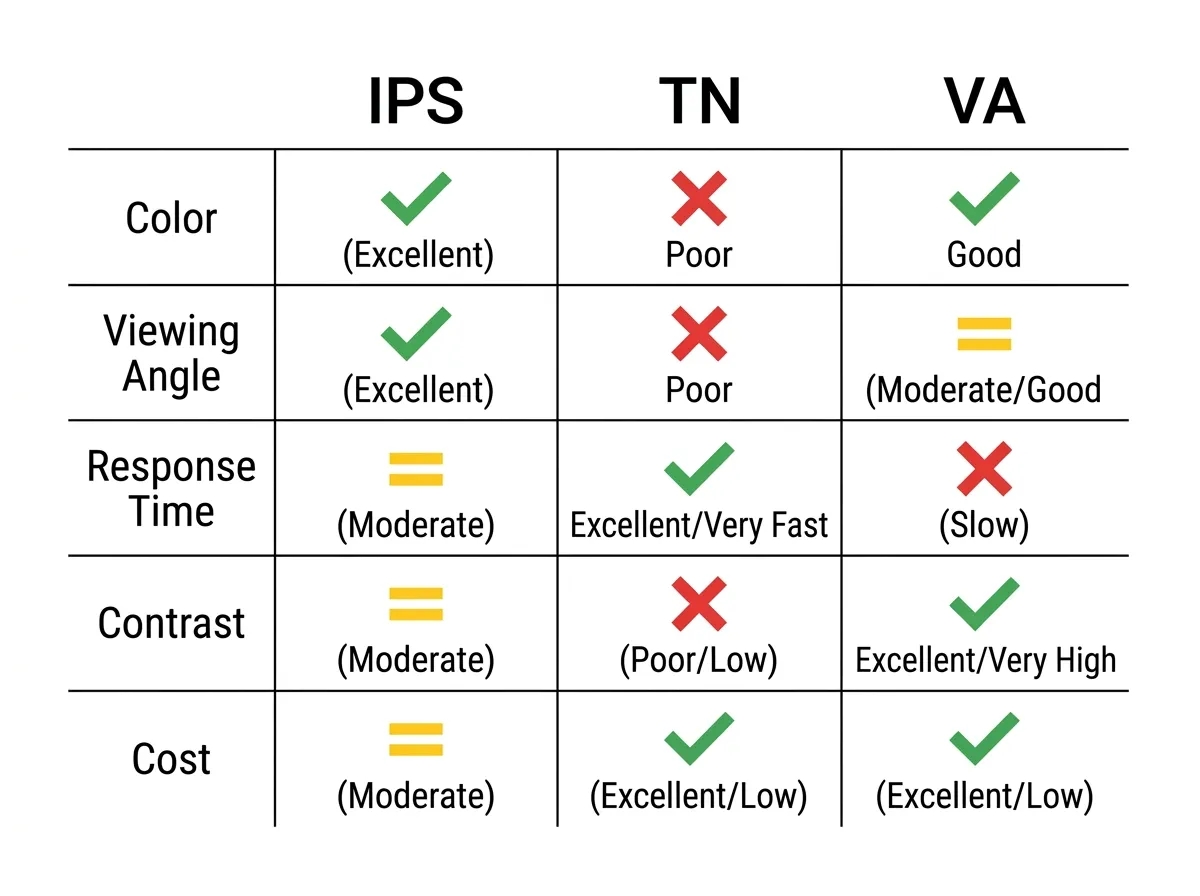
For CompTIA A+ (220-1201 Objective 3.1), the goal is practical: you should be able to match the panel type to a user’s complaint and recommend a sensible replacement or upgrade.
IPS LCD, best for color and viewing angles, with a few common downsides
IPS (in-plane switching) is the LCD panel type most people describe as “looks right from anywhere.” Colors tend to stay stable as you move left, right, up, or down. That makes IPS a strong default for general use, and a safer choice when accurate color matters for school, office work, and creative tasks. If you are doing photo work, light design work, or just want a screen that does not change tone when you shift in your chair, IPS usually meets that expectation.
In real devices, you will often see IPS in mid-range to premium laptops, business laptops, and a large share of mainstream desktop monitors. Many vendors market it as “wide viewing angles,” and that is usually a fair claim.
Common IPS downsides show up most in dark content and dark rooms:
- Lower contrast than VA: Blacks often look more like dark gray, because the backlight still leaks through more than on VA panels.
- IPS glow: At off-angles, dark areas can appear to “glow,” often near corners. It’s not always a defect, it’s a known behavior of many IPS panels.
- Often higher cost than TN: IPS panels can cost more at the same size and refresh rate, especially in laptops and budget monitors.
A helpful way to explain IPS to users is a “conference room” analogy. IPS is like a presentation you can read from most seats. TN is like a whiteboard you need to face straight on. VA is like a home theater screen with better blacks, but some motion tradeoffs.
Exam memory hooks (quick recall):
- “IPS equals wide angles.” If viewing angle complaints are the main issue, IPS is the likely fix.
- “IPS equals image stability.” Colors and brightness shift less as the user moves.
TN LCD, fast response and low cost, but weaker color and narrow angles
TN (twisted nematic) is often the value pick. It has a long history in gaming monitors because it can deliver fast response times and high refresh rates at a lower price. If a user cares most about motion clarity in fast action, and they are shopping on a strict budget, TN can still make sense.
In everyday use, TN’s limitations are easy to spot. The most common complaint is color shift with viewing angle changes. Look at the panel from above or from the side and the image can look faded, tinted, or inverted in extreme cases. Even sitting normally, a tall TN monitor can look slightly different at the top than at the bottom because your eyes view those areas at different angles. That is why TN often feels “fine” when you face it directly, but looks worse when you move.
TN also tends to have weaker color reproduction than IPS, even when specs look similar on paper. For office documents, web browsing, and basic school use, it can still be acceptable.