Every device that touches a wired network needs a doorway to reach it, and that doorway is the network interface card. Plug in a cable, watch the link light blink, and traffic starts to flow. When that light stays dark, the NIC is one of the first things a technician checks.
CompTIA A+ Core 1 (220-1201) covers network interface cards and Ethernet adapters under the Networking domain, in the objective dealing with Ethernet cabling and physical networking. The exam expects you to recognize the common NIC types and speeds, know how they connect to the rest of the system, understand the settings that control how they link, and be able to troubleshoot a physical connection that isn't working. This article walks through what a NIC does, the forms it takes, and the checks you'll actually perform on the job.
A NIC is the hardware endpoint between a computer and the network
A network interface card, often just called a NIC or a network adapter, is the hardware that turns data from the computer into signals that travel across a cable, and turns incoming signals back into data the computer can use. Everything about a device's wired connection passes through this one component. If the NIC fails, the machine is offline no matter how healthy the rest of the network is.
The NIC operates at the lower layers of networking. It handles the physical signaling on the wire and the framing and addressing that let devices on the same local network find each other. Each NIC carries a burned-in hardware address, called the MAC address, that identifies it on the local segment. That address matters for switching, for filtering, and for a handful of troubleshooting steps you'll see later.
In exam terms, remember that a NIC is a physical-layer and data-link-layer device. It's where the cable meets the computer, and it's the component that gives a machine its Ethernet identity on the local network.
NICs come integrated, on expansion cards, or as external adapters
You'll meet NICs in three physical forms, and knowing which one you're dealing with changes how you install or replace it.
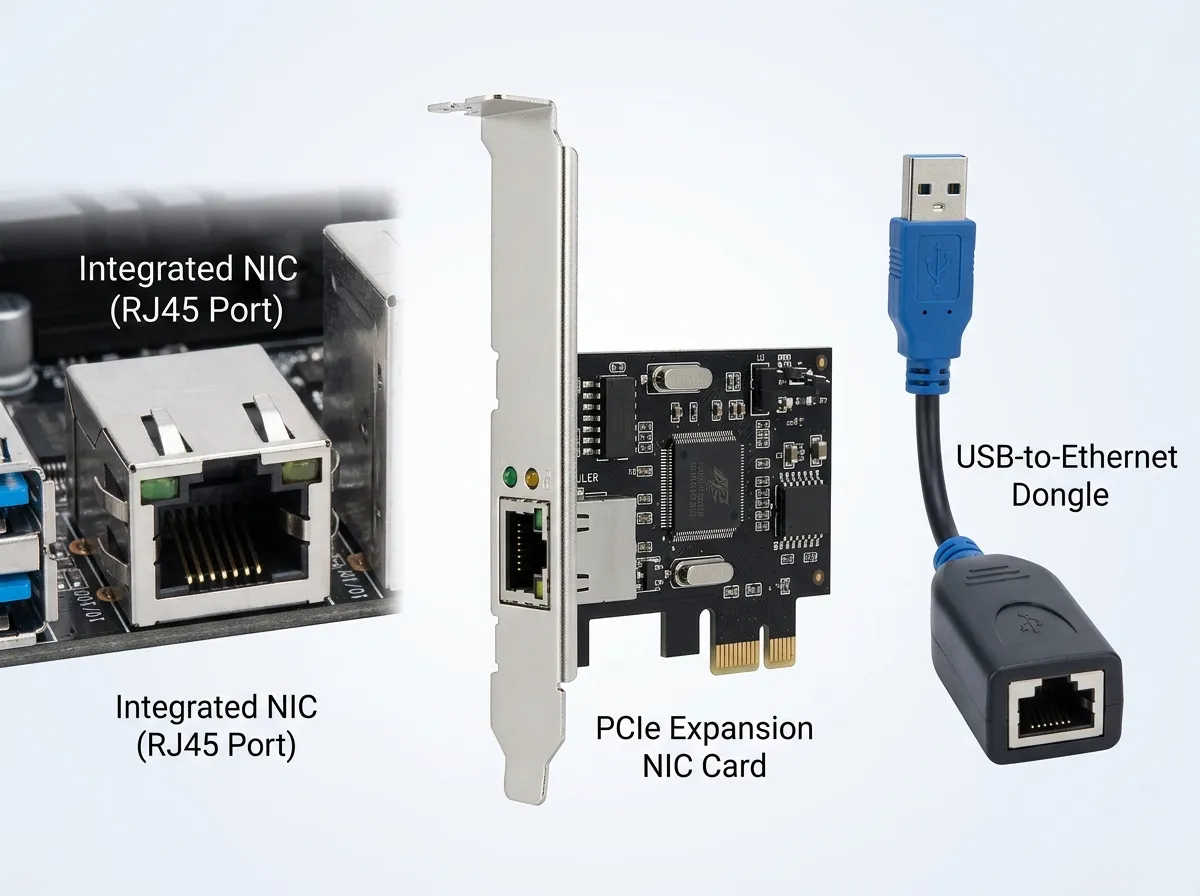
Most desktops and nearly all laptops ship with an integrated NIC built directly into the motherboard. The Ethernet port on the back of a desktop or the side of a laptop connects to a controller soldered onto the board. Integrated NICs are convenient and free, but if one fails you can't simply unplug it. You either add a replacement adapter or, on a laptop, use an external one.
An add-in NIC is an expansion card that installs into a PCI Express slot. Technicians add these when the onboard NIC dies, when a machine needs a faster port than the motherboard provides, or when a server needs multiple network ports. A single-port gigabit card fits in a small PCIe x1 slot, while multi-port or higher-speed cards may use x4 or larger slots for the extra bandwidth. When you install one, seat it firmly, screw down the bracket, and confirm the operating system loads a driver for it.
External adapters connect through a port on the outside of the machine, most often USB. A USB-to-Ethernet adapter gives a NIC to a laptop that lacks a built-in port, or provides a quick replacement when an onboard port fails. The speed you get depends heavily on the USB version behind it. A gigabit adapter needs USB 3.0 or better to reach full speed, because older USB 2.0 tops out below a gigabit of usable throughput. Docking stations also provide Ethernet this way, presenting a NIC to the laptop over the dock connection.
For the exam, be able to match the scenario to the form factor. A user whose laptop has no Ethernet port needs a USB adapter or a dock. A desktop whose onboard NIC stopped working can take a PCIe card. A new build simply uses the port already on the board.
Ethernet speeds are named by their standard, and NICs negotiate the best common one
NIC speed is described by the Ethernet standard the adapter supports. These standards define the maximum data rate the port can reach on a proper cable. Knowing the common ones, and the shorthand names, is squarely on the exam.
| Standard | Common name | Speed |
|---|---|---|
| 10BASE-T | Ethernet | 10 Mbps |
| 100BASE-TX | Fast Ethernet | 100 Mbps |
| 1000BASE-T | Gigabit Ethernet | 1000 Mbps (1 Gbps) |
| 2.5GBASE-T / 5GBASE-T | Multi-gig / NBASE-T | 2.5 or 5 Gbps |
| 10GBASE-T | 10 Gigabit Ethernet | 10 Gbps |
Most NICs sold today are gigabit adapters that also support the slower 10 and 100 Mbps rates for backward compatibility. When you plug a cable in, the NIC and the device on the other end perform auto-negotiation. They exchange capabilities and agree on the fastest speed and duplex both sides support. If you connect a gigabit NIC to a 100 Mbps switch, the link settles at 100 Mbps, because that's the highest speed both ends share.
This is where a real-world gotcha appears. The cable also limits the speed. Gigabit needs all four pairs of a Cat 5e or better cable in good condition. A damaged pair, a poorly terminated connector, or an old Cat 5 run can cause a gigabit-capable NIC to fall back to 100 Mbps. When a user complains that a "gigabit" connection feels slow, the actual link speed is one of the first things to check, and the cable is a common cause.
Multi-gig speeds of 2.5 and 5 Gbps were designed to run over existing Cat 5e and Cat 6 cabling for shorter distances, which is why they became popular in offices that didn't want to rewire for full 10 Gbps. For 10GBASE-T over copper, you generally want Cat 6a to reach the full 100-meter run reliably. Treat these as the common cabling guidelines, not absolute guarantees, since real-world runs depend on installation quality.
The physical connection is RJ45 over copper, with fiber for special cases
The connector you'll see on almost every copper Ethernet NIC is the 8P8C modular plug, universally called RJ45. It's the rectangular clip-in connector on the end of a twisted-pair patch cable. The NIC's port is the matching jack.