An optical drive is a device that uses a laser to read and write discs. If you haven’t used one lately, you’re not alone, but CompTIA A+ 220-1201 Objective 3.4 optical drives still matters in 2026.
Why? Support tickets still come in for legacy software installs, offline backups, classroom media, and DVD movie playback. On the exam, you’re expected to identify drive types, match discs to the right hardware, and troubleshoot common failures without guessing. This guide covers drive types, connectors, disc formats, capacities, speeds, region codes, and quick, exam-style troubleshooting.
Optical drive types you may see on the A+ exam
Optical drives show up in two common forms, and the best choice depends on the job in front of you. A desktop used for older training media may have an internal drive, while a modern laptop often needs an external unit for the same disc.
A technician might use an optical drive to reinstall an older OS image from DVD, load motherboard drivers from a vendor disc, or copy archived photos from a CD-R. These cases are less common than USB installs, but they still appear in real support work, which is why the exam keeps them in scope.
Internal optical drives (SATA) versus external drives (USB)
Internal drives mount in a desktop bay and connect with SATA data plus SATA power. External drives connect over USB and sit outside the system. Many laptops and small-form PCs rely on external USB optical drives, since they don’t have room for a built-in bay. Some external models need extra power, either from a second USB plug or a power adapter. A single USB 2.0 port supplies limited current, which is why bus-powered external drives sometimes ship with a Y-cable that draws from two ports at once; a modern USB 3.x or USB-C port usually delivers enough on its own.
There is a third connector worth knowing for the exam. Slim internal drives, the kind that fit in laptops and small optical bays, use a slimline SATA connector, which combines data and power into one smaller plug rather than the two separate cables a full-size desktop drive uses. You will also still find PATA/IDE ribbon-cable drives with Molex power in legacy machines a tech may service, though modern systems have moved to SATA. Knowing which connector a drive expects prevents ordering the wrong replacement part.
Reading and writing capabilities, ROM, R, and RW
ROM means read-only media, so the drive can only read it. R discs are recordable (write once). RW discs are rewritable (erase and write again). Pay attention to the drive’s exact rating, since a drive may read CDs yet not write DVDs, even if it has a DVD-sized tray. Before buying blank media, check the drive label and the OS details (such as Device Manager) for supported formats.
Expect a few more format names on the exam. DVD-RAM is a rewritable format that supports random read/write much like a hard drive and tolerates roughly 100,000 rewrite cycles, far more than DVD-RW, though it needs a drive that specifically supports it and was often housed in a protective cartridge. M-DISC is a write-once archival format that etches data into an inorganic layer rather than an organic dye, so it resists the fading that eventually corrupts ordinary burned discs; the M-DISC organization markets a data lifespan measured in centuries. Burning an M-DISC requires an M-DISC-capable burner, but any standard drive can read the result.
Disc formats, capacities, and speeds, what works with what
Exam questions often test simple compatibility. The rule is direct: the drive and disc format must match. If the disc type is wrong, no setting will fix it. Beyond compatibility, you should be able to recall roughly how much data each family holds and how fast each one moves at its base speed.
Common disc types: CD, DVD, and Blu-ray
Know the names you’ll see: CD-R, CD-RW, DVD-R, DVD-RW, DVD+R, DVD+RW, DVD-RAM, BD-R, and BD-RE. Blu-ray drives usually read CDs and DVDs. A standard DVD drive can’t read Blu-ray discs, even if the disc looks similar at a glance. The reason is the laser: CDs are read with an infrared laser near 780 nm, DVDs with a red laser near 650 nm, and Blu-ray with a shorter blue-violet laser near 405 nm. The shorter wavelength focuses on smaller pits, which is exactly why Blu-ray fits far more data on the same-size disc.
Capacities, single-layer versus dual-layer
A quick way to remember the ladder: each generation is roughly an order of magnitude larger than the one before it.
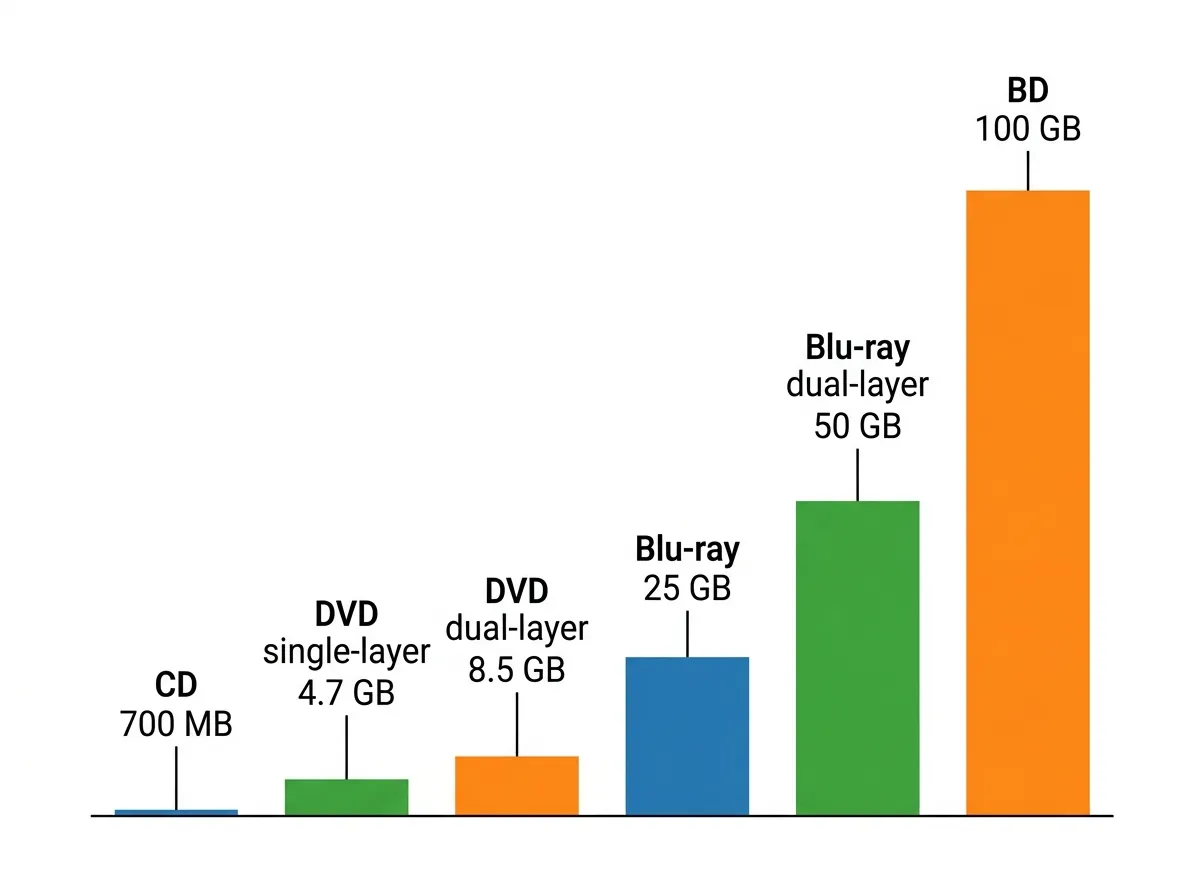
| Disc type | Single layer | Dual / higher layer |
|---|---|---|
| CD | ~700 MB (also 650 MB) | — |
| DVD | 4.7 GB | 8.5 GB (dual layer, “DL”) |
| Blu-ray | 25 GB | 50 GB (dual), 100 GB (BDXL triple) |
Dual-layer discs add a second recording layer under the first, which the laser reaches by refocusing. A dual-layer DVD holds 8.5 GB instead of 4.7 GB, and dual-layer Blu-ray holds 50 GB instead of 25 GB. Blu-ray also defines BDXL with three or four layers, reaching 100 GB and 128 GB, but those need a BDXL-capable drive. On the exam, the numbers most worth memorizing are DVD 4.7/8.5 GB and Blu-ray 25/50 GB.
What “x” speed ratings mean in real life
A 16x or 24x rating is a multiplier of a base rate, not a constant speed, and the base rate is different for each disc family.