Peripheral cables are the physical links between a PC and the devices around it, your keyboard, phone, printer, external drive, or even a network switch in a closet. For the CompTIA A+ 220-1201 Objective 3.2, you’re expected to recognize common cable types on sight and match them to real support tasks.
The exam also cares about the practical details: connector shapes, basic speed tiers, power limits, and what still works when you mix old and new hardware. Cable naming can be messy, especially with USB versions, so this guide keeps the focus on fast, test-ready differences across four cable families: USB 2.0, USB 3.x (often labeled as USB 3.0, 3.1, or 3.2), Serial (RS-232), and Thunderbolt.
USB 2.0 vs USB 3.x: what changes, what stays the same
USB is the default cable family for peripherals, but it has two exam traps. First, connectors and speeds aren’t the same thing. Second, USB version names are confusing, even in product listings. CompTIA may refer to “USB 3.0” broadly, but questions often test what you can infer from the speed rating and the port marking.
At a high level, USB 2.0 tops out at 480 Mbps, which is fine for low-bandwidth devices. USB 3.x jumps into multi-gigabit speeds and usually supports more available power, which matters for portable drives and docks. Most USB generations keep backward compatibility, but that doesn’t mean you always get full speed.
Here is the quick comparison that usually matches exam expectations:
| USB standard (common exam wording) | Max theoretical speed | Common port cues | Typical use |
|---|---|---|---|
| USB 2.0 | 480 Mbps | Often black or unmarked Type-A | Mouse, keyboard, basic printer, older flash drive |
| USB 3.2 Gen 1 (formerly USB 3.0 / USB 3.1 Gen 1) | 5 Gbps | Blue Type-A, “SS” logo | External HDD/SSD, fast flash drives |
| USB 3.2 Gen 2 (formerly USB 3.1 Gen 2) | 10 Gbps | Red Type-A on many boards, “SS 10” marking | External SSDs, higher-end docks |
| USB 3.2 Gen 2x2 | 20 Gbps | USB-C only; markings vary, cable matters | Very fast external storage |
A key test habit: treat marketing names as hints, then anchor your answer on the Gbps number and whether the port and cable are “SuperSpeed” rated.
Two naming wrinkles trip people up. USB 3.0 was renamed twice: it is the same 5 Gbps link whether a listing says USB 3.0, USB 3.1 Gen 1, or USB 3.2 Gen 1. The 10 Gbps tier is USB 3.1 Gen 2 or USB 3.2 Gen 2, and 20 Gbps is USB 3.2 Gen 2x2, which exists only on USB-C. USB4 runs at 40 Gbps (80 Gbps in USB4 version 2.0), uses only the USB-C connector, and borrows its signalling from Thunderbolt 3.
Power and cable length are tested as often as speed:
| Standard | Default power to a device | Recommended maximum cable length |
|---|---|---|
| USB 2.0 | 500 mA at 5 V (2.5 W) | 5 m |
| USB 3.x over Type-A | 900 mA at 5 V (4.5 W) | About 3 m (shorter for 10 Gbps) |
| USB-C without Power Delivery | 1.5 A or 3 A at 5 V (7.5 W or 15 W) | 2 m (1 m for 20 Gbps and USB4) |
| USB Power Delivery (USB-C only) | Negotiated, up to 100 W; 240 W with PD 3.1 Extended Power Range | Cable must be rated for the wattage (60 W is the unmarked default) |
Exam tip: an external 2.5-inch hard drive that spins up on a desktop's USB 3.0 port but clicks and disappears on an old laptop's USB 2.0 port is a power problem (500 mA is not enough), not a speed problem. A powered hub or a USB 3.x port fixes it.
USB 2.0 basics you must recognize on sight
USB 2.0 is easy to underestimate because it still shows up everywhere. You should recognize these connector shapes quickly:
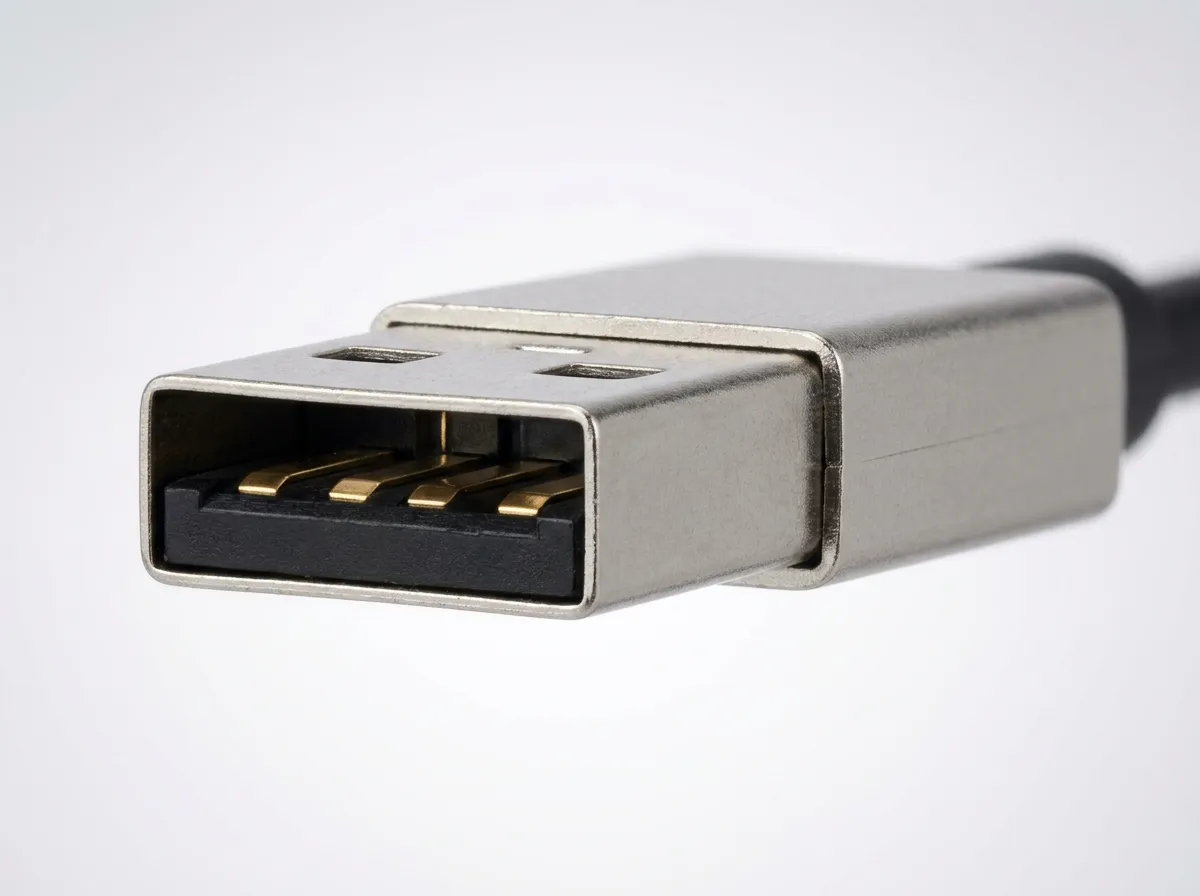
- Type-A: the flat, rectangular plug used on PCs, chargers, and many hubs.
- Type-B: the squarish plug found on many older printers and some scanners.
- Mini-USB: common on older cameras and MP3 players.
- Micro-USB: common on older Android phones and small accessories.
USB 2.0 supports a maximum theoretical data rate of 480 Mbps. In a support setting, that points to basic peripherals where latency and bandwidth are low: keyboards, mice, simple headsets, and older printers. It can also handle flash drives, but large file copies will feel slow.
Cables and hubs also matter at this level. USB 2.0 has practical length limits, so long runs often fail or become unstable. When a user needs more ports, a USB hub extends connectivity, but a bus-powered hub can run short on power with multiple devices.