A tiny piece of plastic can carry a whole company’s files, or wipe them out with one careless unplug. That tension is why CompTIA A+ 220-1201 Objective 3.4 spends time on removable storage, with a clear focus on flash drives and memory cards.
For the exam, and for real support work, you should be able to identify common types, pick the right media for a device and task, connect it safely, and avoid predictable mistakes. By the end of this guide, you’ll be ready to answer scenario questions and handle the tickets that show up right after a user says, “It was working yesterday.”

Removable storage basics you need for Objective 3.4
Removable storage is any storage you can insert and remove without opening a computer case. The whole point is portability, but the trade-off is higher risk. These devices get lost, borrowed, dropped, and plugged into unknown systems.
On a help desk, removable storage shows up in routine jobs: moving large files between systems, loading drivers during an OS install, running a BIOS or firmware update, collecting logs, and doing quick backups. It also appears in more controlled tasks, like imaging a device or transferring data during a replacement.
The exam tends to frame removable storage around a few practical themes:
Capacity vs speed: A 256 GB device is meaningless if writes crawl during a large copy. For many tasks, sustained write speed matters more than peak read speed.
Compatibility: The connector, the file system, and the host device (PC, camera, console) all affect whether media works.
Risk: Removable media is a common path for malware and data leaks. It also fails in simple ways, such as file system corruption after an unsafe removal.
Flash drives: what they are, how they connect, and where they fit
A USB flash drive is solid-state storage in a small enclosure that plugs into a USB port. You’ll see two main connectors: USB-A (the classic rectangular plug) and USB-C (the smaller, reversible plug). Some drives have both ends, which reduces adapter issues during support work.
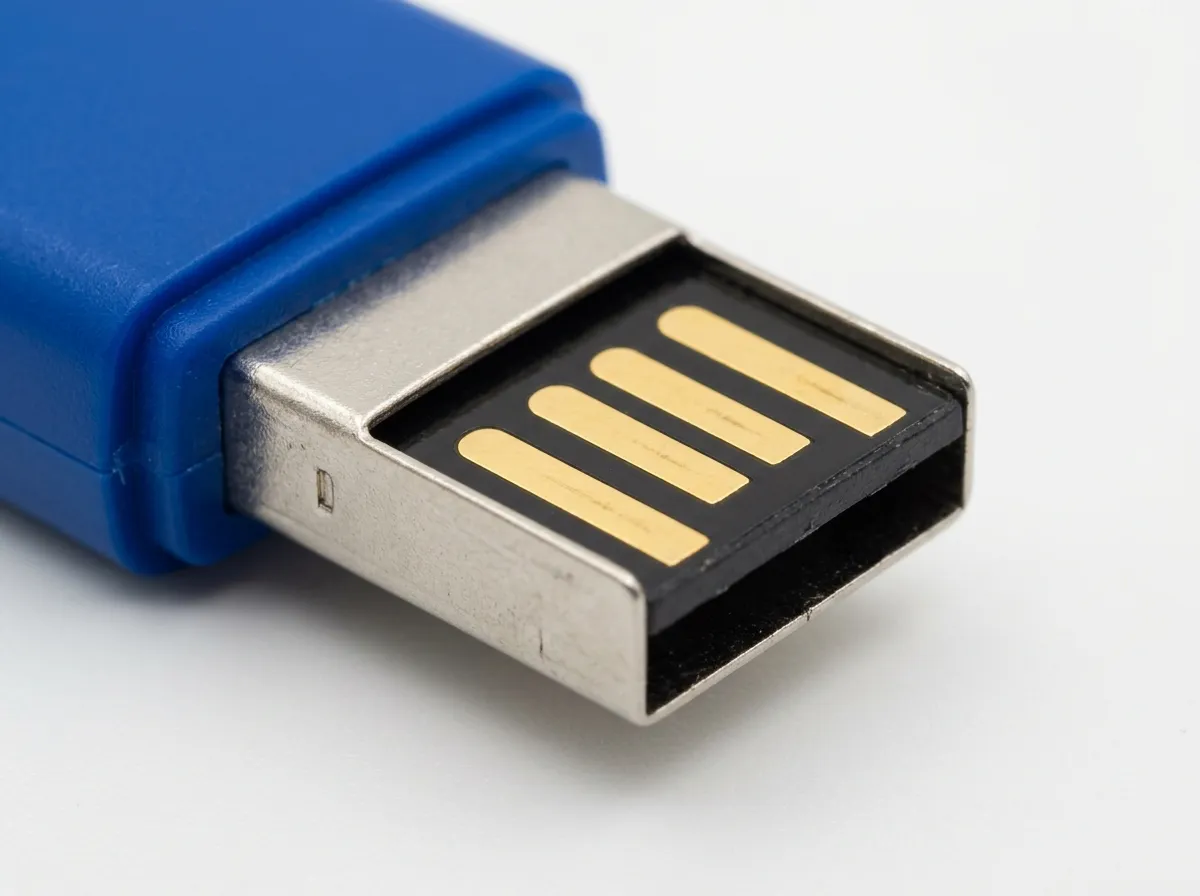
USB version matters because it sets performance limits. USB 2.0 is fine for small documents, but it feels slow with multi-gigabyte images or video. USB 3.x (often marked “SS” for SuperSpeed) is the better choice for OS installers, backups, and large transfers. A fast drive in a slow port still runs slow, so check both ends.
File systems also shape what “works.” In the field you’ll often see:
- exFAT for large files and cross-platform use.
- FAT32 for older devices and broad support, with a 4 GB single-file limit.
- NTFS on Windows-focused drives, with permissions and features that some non-Windows devices won’t read.
Everyday use cases include a Windows installation USB, a quick transfer of user profile files, and a tech toolkit drive with portable utilities (stored in a way that respects company policy).
Memory cards: SD and microSD, sizes, and the meaning of the labels
Memory cards are also solid-state storage, but they are designed for embedded devices. The two formats you must recognize are SD (full-size) and microSD (smaller).