Computers have several security features that can protect the startup process before the operating system even loads. Three important examples are Secure Boot, boot passwords, and BIOS or UEFI passwords.
These features are configured in the motherboard firmware. On older systems, this firmware is usually called BIOS. On modern systems, it is usually called UEFI. Even though many people still say “BIOS,” most newer computers use UEFI.
For IT support technicians, these settings are important because they affect security, troubleshooting, operating system installation, and access to firmware settings. A computer may fail to boot from a USB drive, ask for a password before startup, or block changes to boot order because of these security features.
Why Startup Security Matters
The startup process happens before Windows, Linux, or another operating system is fully loaded. This makes it an important target for attackers. If malicious software can load before the operating system, it may be able to hide from normal antivirus tools or control the system at a very low level.
Startup security features help prevent unauthorized changes and untrusted software from loading. They can also stop users from changing firmware settings, booting from unauthorized devices, or accessing a computer without permission.
In a school, business, or government environment, these protections are especially important. Devices may contain sensitive data, connect to internal networks, or be managed by organization policy.
What Is Secure Boot?
Secure Boot is a UEFI security feature that helps make sure the computer only loads trusted boot software during startup.
When a computer starts, it loads small pieces of software before the operating system fully runs. Secure Boot checks whether that startup software is trusted. If the software is not trusted, Secure Boot can block it from loading.
The goal is to protect the computer from certain types of malware that try to infect the boot process. These threats can be dangerous because they may run before the operating system and avoid normal security tools.

Secure Boot is not the same thing as antivirus. It does not scan every file on the computer. Instead, it protects a specific part of the startup process.
How Secure Boot Works
Secure Boot uses trusted digital signatures. A digital signature is a way to verify that software came from a trusted source and has not been changed unexpectedly.
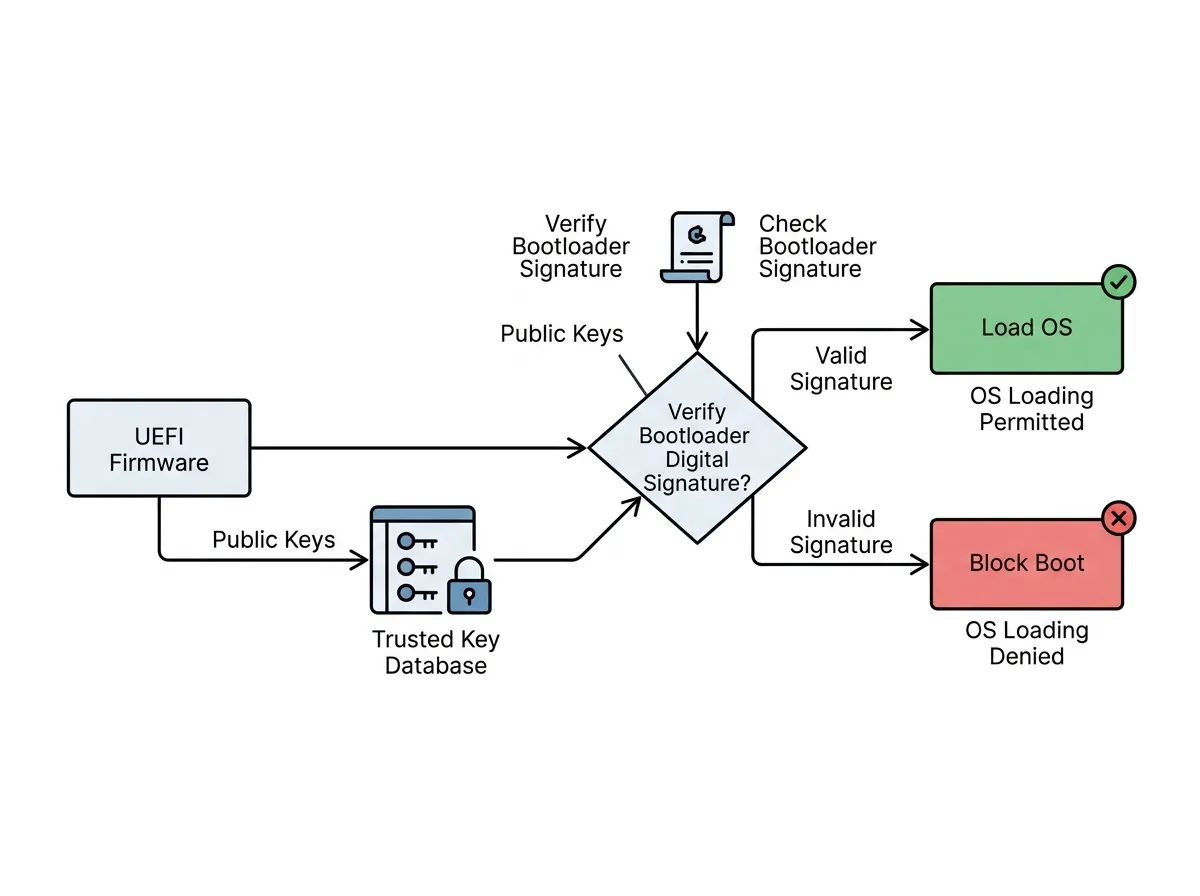
When Secure Boot is enabled, the firmware checks the bootloader before allowing it to run. The bootloader is the software that begins loading the operating system. If the bootloader is trusted, startup continues. If it is not trusted, the system may stop the boot process or display an error.
On a typical Windows computer, Secure Boot helps verify that Windows Boot Manager is trusted. This protects the early startup chain and makes it harder for unauthorized boot software to run.
When Secure Boot Helps
Secure Boot is useful because it adds protection before the operating system loads. This helps defend against bootkits and rootkits that try to start before Windows.
It is also helpful in managed environments. A school or company may want computers to boot only approved operating systems and approved startup files. Secure Boot helps enforce that.
Secure Boot also supports modern security features in operating systems. For example, newer Windows security protections may expect Secure Boot to be enabled.
When Secure Boot Can Cause Problems
Secure Boot can sometimes block legitimate tools. Some older operating systems, custom recovery environments, Linux distributions, or bootable repair utilities may not start if Secure Boot does not trust them.
For example, a technician may create a USB repair drive and try to boot from it, but the system skips it or shows an error. The USB drive may not be broken. Secure Boot may simply be blocking it.
In some cases, the technician may need to temporarily disable Secure Boot to run a repair tool or install a different operating system. However, this should be done carefully. In a business or school environment, Secure Boot may be required by policy.
A technician should never disable Secure Boot just because it is inconvenient. They should understand why it is being disabled and turn it back on when appropriate.
Secure Boot and BitLocker
Secure Boot can affect drive encryption tools such as BitLocker. BitLocker may use TPM and startup measurements to decide whether the system is still in a trusted state.
If Secure Boot settings change, BitLocker may detect that the startup environment has changed. The system may then ask for a BitLocker recovery key.
This is important for technicians. Before changing Secure Boot settings on a system with encryption enabled, they should make sure the recovery key is available.