Display issues are a common source of CompTIA A+ 220-1201 questions because they mix hardware, settings, and symptoms. A cracked panel, a bad cable, or the wrong refresh rate can look similar at first glance. This section focuses on the parts and screen attributes you’re expected to recognize fast.
You’ll cover the inverter, a legacy laptop component tied to CCFL backlights. Even though many systems now use LED backlights, the exam still tests inverters because older symptoms are distinct, such as a dim display with a faint image still present.
From there, you’ll work through screen resolution, aspect ratio, and scaling—how to read the numbers, why native resolution matters, and how the connector path can cap what a display offers. Finally, you’ll review the display quality attributes that appear in both specs and troubleshooting: pixel density (PPI), refresh rate, and color gamut. By the end, you’ll be able to match common symptoms to the right part or setting, and answer typical exam-style questions with clear reasoning.

Inverters explained, why they matter and when you still see them
An inverter is a display power component you mainly associate with older laptop screens. Its job is simple in concept: convert low-voltage DC power from the laptop into high-voltage AC power needed by a CCFL backlight (a fluorescent tube). Without the inverter, a CCFL-lit LCD can still produce an image, but you won’t get usable brightness.
For the CompTIA A+ 220-1201 exam, inverters matter because the symptoms are classic and test writers still use them. In real workplaces, you see fewer inverter issues now since most modern screens use LED backlights. Still, older business laptops, legacy repair fleets, and refurbished devices can bring the inverter topic back into your day.
CCFL vs LED backlight, the key difference that changes the parts
The easiest way to remember the difference is the power path. A CCFL backlight needs an inverter to generate high voltage. An LED backlight uses an LED driver, which is often built into the panel electronics and may not be a separate, replaceable board.
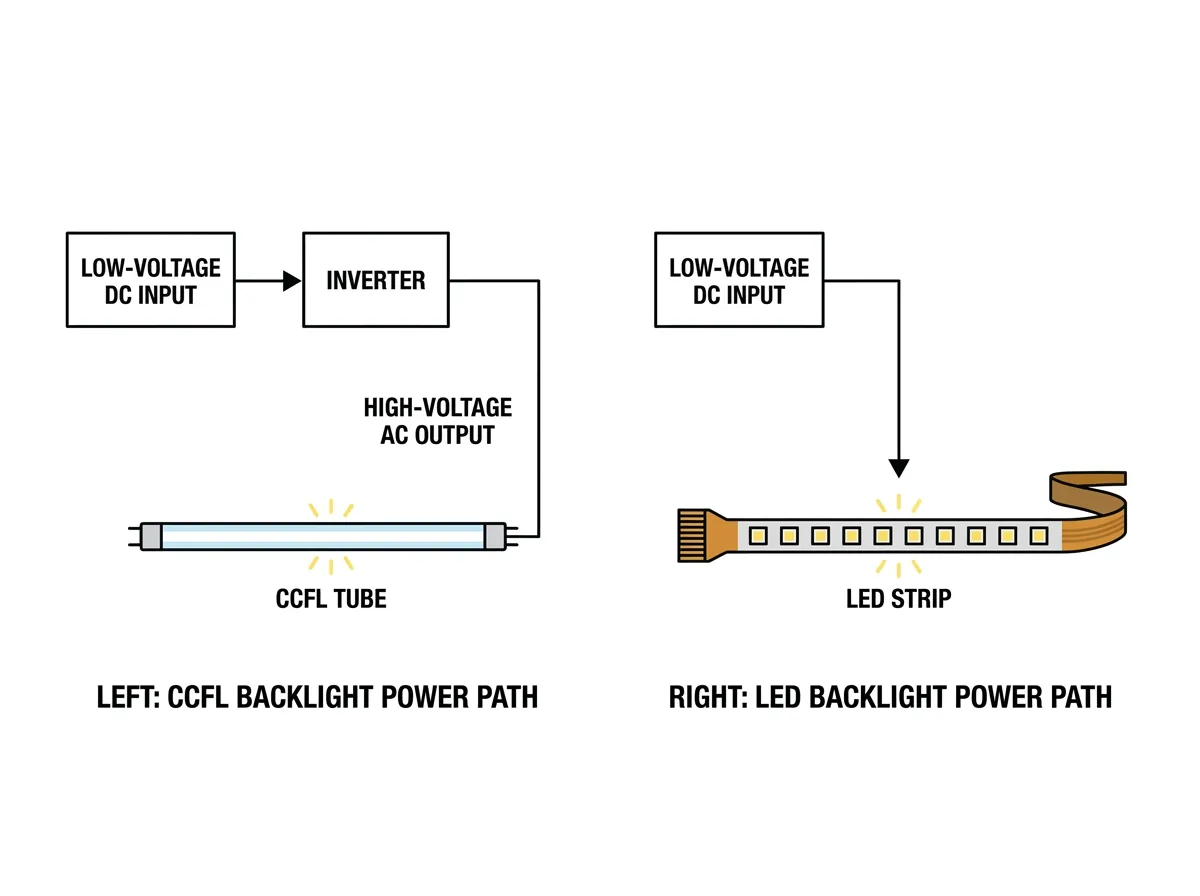
This part difference changes troubleshooting and replacement strategy. With CCFL, a dim display can be caused by the inverter or by the aging fluorescent tube. With LED, the backlight circuit is usually tied closer to the panel’s internal power board, so field replacement often means the whole display assembly.
If you are trying to guess what you are dealing with, a few practical cues help:
- Age of device: CCFL is common in older laptops, especially many models from the 2000s and early 2010s. Most newer laptops and monitors are LED-backlit.
- Panel thickness and build: CCFL designs often appear in thicker lids with more internal space for the tube and inverter board.
- Color look at startup: CCFL backlights can look warmer or slightly uneven as they age, while LED backlights tend to look more stable when healthy.
- Brightness behavior: CCFL systems may show a slow brightness ramp-up after powering on, like a small “warm-up” period. LED backlights usually reach steady brightness almost immediately.
From an exam perspective, the key vocabulary is consistent: CCFL = inverter, LED = driver (often integrated). When a question mentions an “inverter,” assume a CCFL-backlit LCD unless it states otherwise. That single detail often points you toward the correct failure cause and the right next troubleshooting step.
Failure signs that point to an inverter or backlight problem
Backlight problems can be confusing because the LCD image and the backlight are separate. The LCD can still form the picture even when the light source fails. That is why “the screen is black” does not always mean “the panel is dead.”
These symptoms often point to an inverter or CCFL backlight issue:
- Very dim image you can see with a flashlight: The LCD is working, but the backlight is not. This is the classic sign tested on A+.
- Screen flickers, often linked to movement of the lid or changes in brightness.
- Screen goes dark after a second: Backlight starts, then shuts off. Protection circuits may cut power when they detect abnormal load, which can happen with a failing inverter or aging CCFL tube.
- Brightness controls do nothing: The LCD image remains, but changing brightness has little or no effect.
- Pink tint on startup: Common with aging CCFL tubes. The tint may fade as the tube warms, then return later.
It also helps to know what is less likely to be the inverter:
- If you see lines, blotches, “ink” stains, or cracked-glass patterns, that points toward LCD panel damage, not the backlight system.
- If the display shows random blocks, heavy artifacting, or driver crashes, the cause is more consistent with a GPU, VRAM, or driver issue than an inverter.
- If the laptop screen is dead and the system also fails to show video externally, suspect GPU, motherboard, RAM, or system-level faults before focusing on the backlight.
A quick decision path can keep you from chasing the wrong part:
- Test an external monitor.
- If the external monitor works, the GPU is likely fine. Focus on the laptop display chain (panel, backlight, inverter or LED driver, display cable).
- If the external monitor does not work, the problem is more likely upstream (GPU, motherboard, power, or system not posting). Backlight parts are unlikely to be the main issue.
This is the mental model the exam rewards: separate image generation from light output, then confirm your direction with one fast test.
Safety and service notes for inverter-related repairs
Inverter-related work is not complex, but it carries real risk. A CCFL inverter can produce high voltage, even though the laptop runs on low-voltage DC. Treat it with the same caution you would give any power-conversion part.
Keep your process simple and consistent:
- Power off the device and unplug the AC adapter.
- Remove the battery when possible (many laptops still allow this, some do not).
- Wait a short period for discharge time. Stored energy can remain briefly in circuits and capacitors.
- Avoid touching exposed contacts on the inverter board or backlight connectors.
- Use proper tools and handling, including basic ESD control and careful cable release. Many display parts use thin flex cables and fragile ZIF connectors.
At the field technician level, this is often a replace-not-repair situation. You typically replace the inverter (or the display assembly) rather than repair components on the board. The goal is safe, repeatable service with known-good parts, not bench-level troubleshooting.
For the CompTIA A+ exam, focus on safe steps and correct part identification. Know that an inverter is linked to CCFL backlights, recognize the flashlight test symptom, and treat high-voltage display parts with caution during disassembly and replacement.
Screen resolution and aspect ratio, how to read the numbers and avoid confusion
Screen specs look simple until you have to explain them to a user. Resolution, aspect ratio, and scaling describe different things, but people often mix them up. For the CompTIA A+ 220-1201 exam, you should be able to read the numbers, predict how the image will look, and choose settings that keep text sharp.
A good mental model helps. Resolution tells you how many pixels the screen can show. Aspect ratio describes the screen’s shape. Scaling changes the size of text and UI without changing the pixel grid.
Resolution basics and the idea of native resolution
A display is a fixed pixel grid. When you see 1920 x 1080, that means 1920 pixels across and 1080 pixels down. Multiply them and you get the total number of addressable pixels. More pixels usually means more detail and more desktop space, assuming the screen size stays the same.
On LCD panels (common in laptops and most monitors), each pixel is a physical element in the panel. That fixed grid is the reason native resolution matters. At native resolution, the computer maps one rendered pixel to one physical pixel. Edges look clean, text is sharp, and fine lines do not shimmer.
When you run a non-native resolution, the screen has to scale the image to fit its pixel grid. Scaling is math. It must guess where pixels should go when the numbers do not divide evenly. The result is often soft text, slight blur, and less crisp UI icons. Users usually describe this as “fuzzy,” “not sharp,” or “my eyes hurt.”
Two common scaling outcomes show up in support tickets:
- Interpolation blur: The display blends pixels to fill gaps, which softens detail.
- Uneven scaling artifacts: Some lines look thicker than others, which can happen when scaling ratios are not clean.
Here are common resolutions you should recognize quickly:
- 1366 x 768: Common on older, budget laptops (often called “HD” in marketing).
- 1920 x 1080 (1080p): Widely used on laptops and monitors, a standard baseline for “Full HD.”
- 2560 x 1440 (1440p): Higher detail and workspace, common on 27-inch monitors.
- 3840 x 2160 (4K): Very high detail, often needs scaling on typical desktop sizes.
For troubleshooting, remember the practical rule: LCDs look best at their native resolution. If a user reports blur after changing settings, confirm the display is set back to native before you chase drivers or hardware.
Aspect ratio, why 16:9 and 16:10 feel different
Aspect ratio describes the shape of the screen, not its sharpness. It is the relationship between width and height. A 16:9 display is wider compared to its height.