
Free CompTIA Security+ labs
Real hands-on labs from the ExamWizardz Security+ course, playable right here with no account. Hunt malware on a Windows PC, write firewall rules, harden an Ubuntu server and collect forensic evidence, then get graded the moment you submit.
18 hands-on labs in the course: 17 Windows and Ubuntu desktop sims, 1 PC bench build.
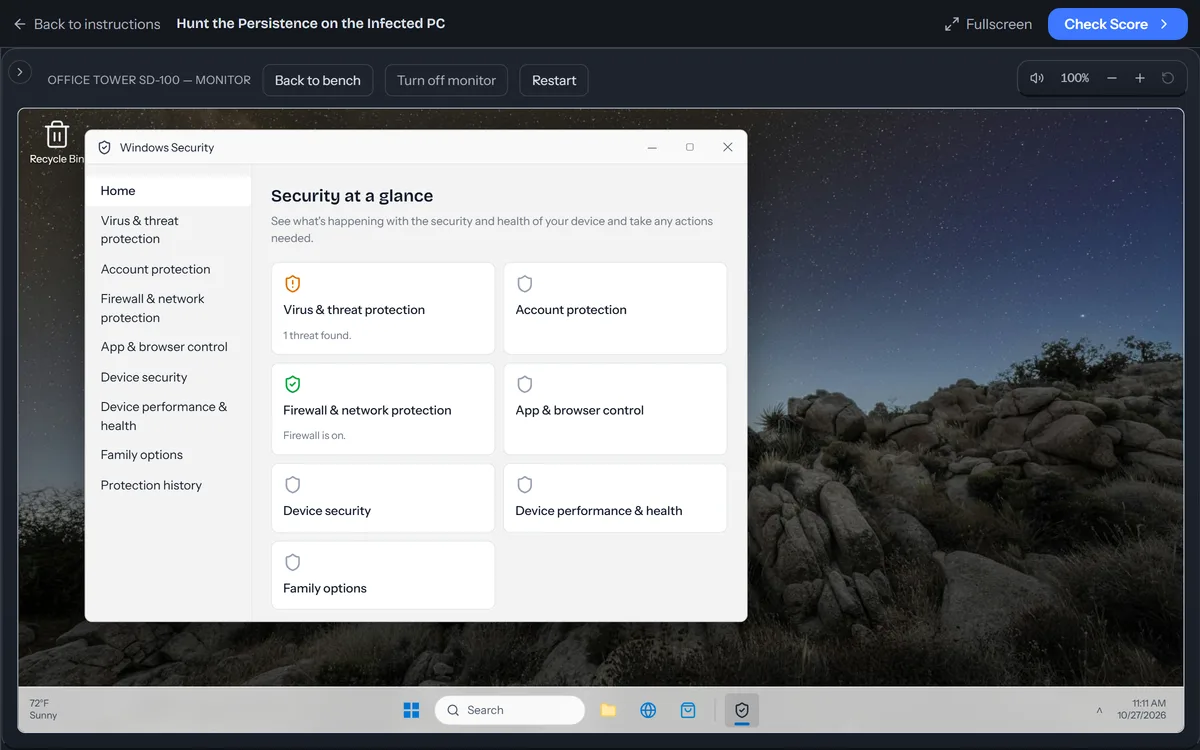
Hunt the Persistence on the Infected PC
The front-desk PC at a small accounting firm is confirmed infected. The user says it was fine until she opened an invoice attachment on Monday. Since then the fan runs flat out, the PC is slow, and Windows Update has stopped finding anything. Your analysis so far:
• A process called updchk.exe is running from the user's AppData folder, using CPU all day. • Killing it once is not enough: it comes back after every sign-in or reboot, so something is relaunching it. • The same payload also sits in C:\ProgramData under a service that Windows lists as "Windows Service Helper". • Windows Update and Defender updates both time out, as if download.windowsupdate.com no longer pointed at Microsoft. • Windows Security shows a detection under Current threats.
The PC stays on the network while you work. Remove the malware and every way it survives a reboot. When you finish:
• The malicious process is no longer running. • Nothing starts it at sign-in: the registry autorun entry and the startup entry that comes from it are gone. • The malicious service is stopped and set to Disabled. (Stop and disable it; do not delete it, so the incident record keeps its configuration.) • The added redirect is removed from the hosts file, and everything else in the file is left as it was. Windows protects that file, so a normal window cannot save it: you need an administrator window. • Microsoft Defender has run a scan and the threat is quarantined.
Leave Windows Explorer and the legitimate Windows services alone. Grading is on the final state.
Write the Host Firewall Rules
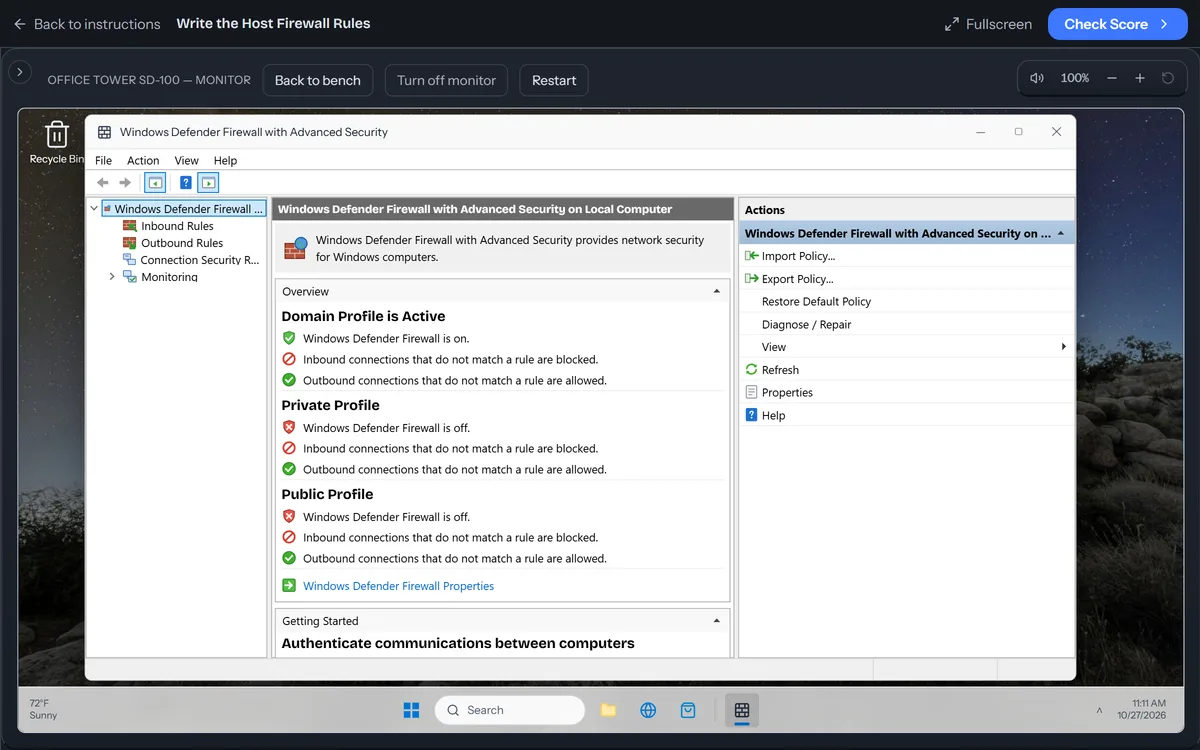
Kestrel Ridge Freight's yard office PC does two jobs besides its own. It hosts the dispatch board, a small internal web app that staff open over HTTPS (TCP 443), and a shared folder that staff map over SMB (TCP 445). Staff PCs sit on the office LAN, 192.168.10.0/24. The PC is joined to the company domain and is on the domain network today, but the yard supervisor takes it to customer sites and joins their guest Wi-Fi, which Windows treats as a public network. The IT admins work from 10.20.0.0/24.
A security review of the PC's Windows Defender Firewall found: • The vendor who installed the dispatch board left a rule named "Allow Any Inbound" that lets every inbound connection through on every profile. Delete it. Staff must still reach the dispatch board from the office LAN, through an inbound rule of its own that allows HTTPS. • Remote Desktop (TCP and UDP 3389) answers anyone who can reach the PC. Only the IT admin subnet, 10.20.0.0/24, may connect, on any network, and the admins must keep their access. • SMB must be blocked whenever the PC is on a public network, including from other devices on the same guest Wi-Fi. Staff on the domain network must keep their shared folder. The PC has no use for file sharing on a private network, so SMB there is your call. • The private and public firewall profiles are switched off. Every profile must be on.
Use any Windows tool you like; a terminal changes the firewall only when elevated (right-click Start, choose Terminal (Admin), then select Yes). Grading is on the firewall's final state.
Harden the Linux Web Server
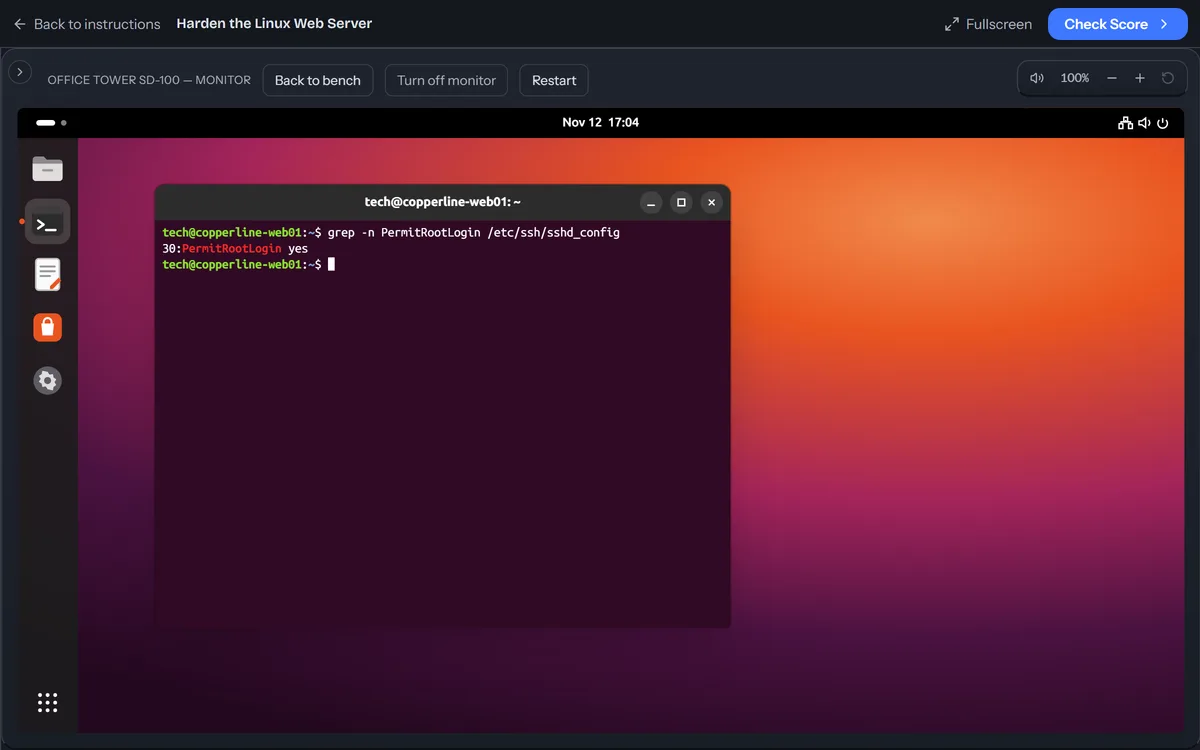
Copperline Tile Supply sells floor tile from one Ubuntu web server, copperline-web01. Priya Nair, an outside auditor, reviewed it last week and sent back this findings list:
- Telnet answers on TCP port 23. Nobody has used it in years. - SSH accepts passwords. The baseline says PasswordAuthentication must be no. The team signs in with SSH keys. - netcat (the nc command) is installed, and nobody on the team knows who put it there. - /etc/shadow can be read by every account on the server. The baseline says it must be mode 640, owned by root, group shadow. - Root can sign in over SSH. The baseline says PermitRootLogin must be no.
Close all five findings. Uninstall netcat; don't just hide the command. Root must not be able to sign in over SSH at all, with a password or with a key: set PermitRootLogin to no, not prohibit-password. Port 23 must be closed now and must stay closed after the server reboots. The SSH changes must be live on the running server, not only saved in a file. Two things must keep working: the shop's website, which Apache serves on TCP port 80, and SSH on port 22, which the team uses to run the server.
The server is at its boot menu. Log in as Bench Technician with the password Tech!23; sudo asks for the same password. The Terminal is on the dock.
Publish SPF, DKIM, and DMARC
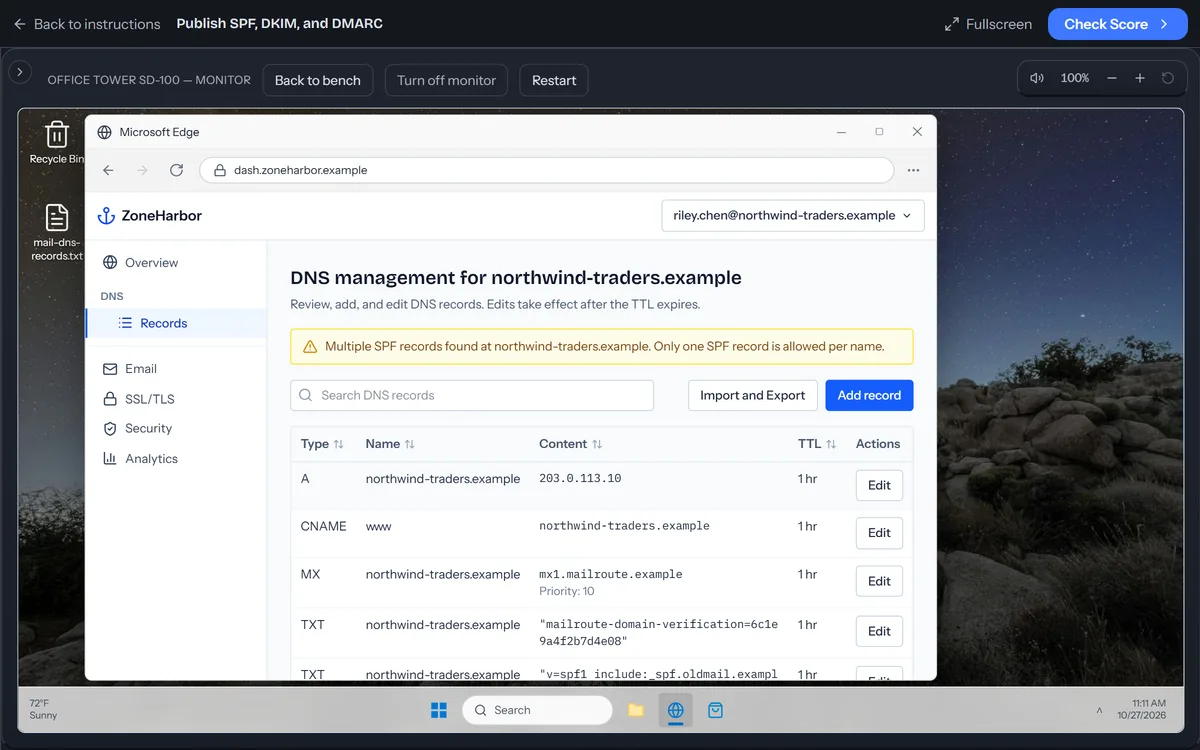
Ticket SEC-2318: finish Northwind Traders' email authentication after Monday's spoofing incident. You are Riley Chen, Northwind's IT administrator.
On October 26, customers received invoices from billing@northwind-traders.example that Northwind never sent, asking them to pay into a new bank account. Northwind moved its mail to MailRoute on October 20. A colleague started the DNS changes for the move before going on leave and never finished them, and Northwind's DMARC policy still asks receivers to take no action on mail that fails.
Sign in: open Microsoft Edge, go to dash.zoneharbor.example (ZoneHarbor, Northwind's DNS host), and sign in as riley.chen@northwind-traders.example with the password Harbor#Mail-26. The zone is northwind-traders.example.
Requirements: • Enforcement. Leadership wants receiving servers told to reject mail that fails DMARC: not quarantine it, and not only report it. The security team has read a month of DMARC reports, and MailRoute is Northwind's only legitimate sender. Keep the reports going to dmarc@northwind-traders.example. • Signing. MailRoute already signs every outgoing message with DKIM, but receivers can't verify a signature until its public key is published. MailRoute's setup file, mail-dns-records.txt in your Desktop folder, lists the DNS values MailRoute needs, the DKIM selector and key among them. Publish the key exactly as MailRoute gives it. • Authorized senders. The old provider, oldmail.example, was shut off on October 20 and no longer sends mail for Northwind. SPF must authorize MailRoute's servers, and mail from any other server must fail SPF outright, not soft-fail. • The website and inbound mail keep working: the A record, the www alias and the MX record stay as they are.
You can check what is published from this PC: nslookup in a Command Prompt queries the zone. Grading is on the zone's final records.
Collect the Evidence in Order of Volatility
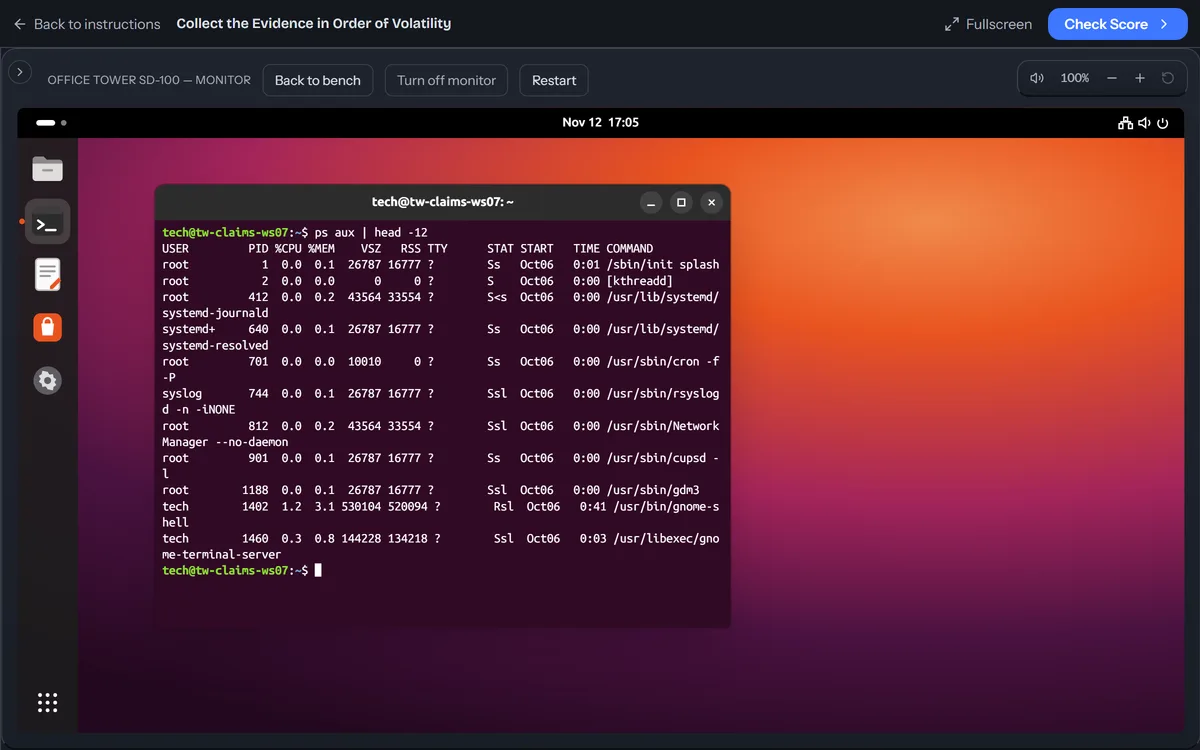
Tidewater Claims Group's security team has flagged the Ubuntu workstation tw-claims-ws07. It belongs to Ravi Singh, a claims adjuster who has been on leave since last Friday. His account, rsingh, is signed in over SSH from outside the building. The workstation is also sending data to an address nobody recognizes.
Ines Okafor, the incident response lead, wants the evidence collected before the network team isolates the machine. You are the IT technician at its console. Her instructions:
- Keep a list of SHA-256 checksums of everything you collect, in a file named SHA256SUMS in /mnt/evidence. The next handler has to be able to check it with sha256sum -c, and it has to cover every file you collected, so make it last. It lists the other files, never itself: if a SHA256SUMS already exists when you run the checksums again, it ends up in the list and fails its own check, so delete it first. The copy of claimdesk.log.1 you make as root is readable by root only (the other two logs stay readable by you), so make the list and check it with sudo. On this drive sha256sum * also prints "sha256sum: lost+found: Is a directory": that is the file system's own folder, not a file, and it is normal. - Collect in order of volatility: the live state first, then the logs. The four live captures are one tier, so their order among themselves does not matter. - Everything goes on the evidence drive, mounted at /mnt/evidence. Nothing goes on the workstation's own disk: no copy of a log, and no capture or draft of the processes, sockets or logins, in your home folder or in /tmp. - Copy three logs into /mnt/evidence, keeping their names: /var/log/auth.log.1, /var/log/syslog.1 and /var/log/claimdesk/claimdesk.log.1, the log of the ClaimDesk claims app. The break-in is in these rotated files. Leave the originals where they are. Each copy must still show the same modification time as its original. - Leave the workstation running as it is. Do not stop, kill or pause any process or service (NetworkManager, the print service, the log daemon and the name resolver included), sign anyone out or reboot. Leave the attacker's file in /tmp/.font-unix as it is (do not delete, move, touch, chmod or chown it), and leave rsingh's session and his home folder in place: they are evidence. The network team contains the machine after you hand over the evidence. - Save the state of the live machine in four files in /mnt/evidence: arp.txt, the ARP cache, the table of nearby machines and their hardware addresses; ps.txt, every process running; ss.txt, every TCP and UDP socket, listening and connected, with the process that owns each one; and w.txt, who is logged in and where from.
A memory image isn't simulated in this lab. Collect what the terminal can show.
The workstation is at its boot menu. Log in as Bench Technician with the password Tech!23; sudo asks for the same password. Don't sign in as rsingh. The Terminal is on the dock.
Every lab in the course
Play now runs here with no account. Free account labs open when you sign up free. Pro labs are part of the full Security+ course.
Cryptography and PKI
- Verify the Downloads Before You InstallDesktop sim · Section 6: Hashing, Salting, and Digital SignaturesPro
Threats, Vulnerabilities, and Attacks
- Hunt the Persistence on the Infected PCDesktop sim · Section 12: Malware and Indicators of CompromisePlay now
- Stop the Password SprayDesktop sim · Section 13: Network and Credential AttacksPro
- Lock Down the Cloud TenantDesktop sim · Section 15: Vulnerability Types and Attack SurfacesPro
- Shrink the Server's Attack SurfaceDesktop sim · Section 15: Vulnerability Types and Attack SurfacesPro
Security Operations
- Lock Down the Workstation FirmwarePC bench · Section 22: Hardening and Endpoint ControlsPro
- Harden the Linux Web ServerDesktop sim · Section 22: Hardening and Endpoint ControlsPlay now
- Apply the Secure Baseline to the New WorkstationDesktop sim · Section 22: Hardening and Endpoint ControlsPro
- Lock Down the Branch RouterDesktop sim · Section 23: Network DefensesPro
- Write the Host Firewall RulesDesktop sim · Section 23: Network DefensesPlay now
- Publish SPF, DKIM, and DMARCDesktop sim · Section 24: Email and Application SecurityPlay now
- Scrub the Secrets Before the Repo Goes PublicDesktop sim · Section 24: Email and Application SecurityPro
- Fix What the Scan FoundDesktop sim · Section 26: Vulnerability ManagementPro
- Ship the Server's Logs to the SIEMDesktop sim · Section 27: Monitoring, Logging, and SIEMPro
- Offboard the Contractor, Fix Privilege CreepDesktop sim · Section 28: Identity and Access ManagementPro
- Lock Down the HR ShareDesktop sim · Section 28: Identity and Access ManagementPro
- Contain the Compromised WorkstationDesktop sim · Section 30: Incident ResponsePro
- Collect the Evidence in Order of VolatilityDesktop sim · Section 31: Investigations and Digital ForensicsPlay now
How the labs fit the Security+ exam
Security+ opens with performance-based questions (PBQs): tasks you complete in a simulated system instead of picking an answer, such as writing firewall rules or placing security devices on a network. These labs practice the same skills end to end on simulated Windows and Ubuntu machines. For shorter exam-style PBQs, try the free Security+ PBQs. For multiple choice, take the free Security+ practice test, and for a study plan read the Security+ study guide.
Questions about the labs
Are these CompTIA Security+ labs free?
The 5 labs at the top of this page are free to play with no account. A free ExamWizardz account opens every lab in the first 4 sections of the course, and Pro opens all 18.
Do the labs match SY0-801?
Yes. Every lab is mapped to a section of the SY0-801 course, and the list above shows which one. SY0-701 shares the same five domains, so the hands-on skills carry over if you're taking that version.
Do I need Linux experience for the Ubuntu labs?
No. Each Ubuntu lab's brief says what to check and change, and the terminal accepts the standard commands for the task. Knowing basic commands like ls, cat and sudo helps.
CompTIA and Security+ are registered trademarks of CompTIA, Inc. ExamWizardz is not affiliated with or endorsed by CompTIA.